Docker Desktop Is Eating Your Mac's Storage — Here's Why and What to Do
Docker Desktop on macOS doesn't run containers directly on your Mac's filesystem — it runs a lightweight Linux virtual machine in the background, and every image, container, volume, and build cache layer lives inside a single virtual disk file that backs that VM. That file only grows. It essentially never shrinks on its own, even after you delete images and containers from inside Docker, which is exactly why Docker Desktop's storage footprint tends to surprise people who check it after a few months of regular use.
It's not unusual to find that single virtual disk sitting at 40, 80, or over 100GB, well after you thought you'd cleaned up old projects — because from Docker's perspective, and from macOS's perspective, that reclaimed space inside the VM isn't the same as reclaimed space on your actual disk.
This tends to hit backend and infrastructure-focused developers hardest, since Docker is often the tool running quietly in the background of a daily workflow — spinning up a database container here, testing a Dockerfile change there — for months without ever being the thing you deliberately opened to check on. Compared to node_modules or DerivedData, which are at least conceptually familiar to most developers, Docker's storage model of a virtual disk backing an entire VM is less understood, which is part of why it goes unaddressed for so long.
It's also worth noting this problem isn't unique to Docker Desktop specifically — anyone running Podman, Colima, or another container runtime on macOS is working with a broadly similar setup, since they all rely on a Linux VM under the hood on macOS (containers being a Linux kernel feature that doesn't exist natively on macOS). The exact paths and commands differ, but the underlying growth pattern of a virtual disk that doesn't shrink on its own applies just as much.
Where the virtual disk lives
On Apple Silicon and recent Intel Macs, Docker Desktop's data lives inside ~/Library/Containers/com.docker.docker/Data/vms/0/data, with the virtual disk file itself typically named Docker.raw (older versions used a qcow2-format file called Docker.qcow2). You can check its size directly:
- du -sh ~/Library/Containers/com.docker.docker/Data/vms/0/data/Docker.raw — the actual size on disk of the virtual disk file backing every image, container, and volume.
- docker system df — Docker's own breakdown of how much space images, containers, volumes, and the build cache are using inside that VM, which is more useful than the raw file size for deciding what to clean up.
- docker system df -v — the same breakdown, verbose, listing individual images and volumes with their sizes so you can identify specific large ones.
Why it grows faster than expected
Four categories inside Docker accumulate independently, and it's easy to only be thinking about one of them:
- Images — every base image and every layer of every image you've pulled or built, including old tags of images you've since rebuilt with a new tag. Nothing removes the old tag's layers automatically.
- Containers — stopped containers aren't deleted by default; docker run without --rm leaves the container's writable layer sitting on disk indefinitely after it exits.
- Volumes — named volumes created by docker-compose or docker run -v persist independently of the containers that created them, including for projects you've since deleted the source code for.
- Build cache — every layer generated during docker build gets cached to speed up future builds, and this cache alone can reach double-digit gigabytes on a machine used for active development.
Cleaning it up from the command line
Docker ships its own cleanup commands, and they're the right first step before anything else:
- docker system prune — removes stopped containers, dangling images (untagged layers no longer referenced by any image), and unused networks. Safe as a routine command.
- docker system prune -a — also removes any image not currently used by a running container, not just dangling ones. More aggressive; you'll need to re-pull images the next time you use them.
- docker system prune -a --volumes — the most thorough option, which also removes unused volumes. Only run this if you're sure you don't need data sitting in a volume that isn't attached to a running container — this is the one command in this list that can delete data you can't get back.
- docker builder prune — clears just the build cache, useful if that's specifically what's grown large per docker system df.
- docker image prune -a — removes all images not attached to a running container, without touching volumes or the build cache, useful when you want a narrower cleanup than the full system prune commands.
Why the Mac disk doesn't shrink even after pruning
This is the part that trips people up: running prune commands frees space inside the virtual disk, but the Docker.raw file on your actual Mac filesystem often doesn't shrink back down to match, because virtual disk formats generally don't automatically release freed blocks back to the host filesystem. You can free 40GB inside Docker and still see the same 80GB Docker.raw file taking up space in Finder.
The most reliable fix, and one Docker itself documents, is restarting Docker Desktop's VM. Newer versions of Docker Desktop include a Troubleshoot menu with a "Clean / Purge data" option that resets the VM disk more aggressively than prune commands alone. As a more drastic last resort, you can quit Docker Desktop, delete the Docker.raw file entirely (this wipes every image, container, and volume, so treat it as a true factory reset), and let Docker Desktop recreate a fresh, minimal virtual disk on next launch.
It's worth checking whether your version of Docker Desktop has switched to the newer virtiofs or gRPC FUSE file-sharing implementation, since Apple Silicon Macs on recent Docker Desktop releases handle disk space reclamation somewhat more gracefully than older Intel-era setups did — but even on the newest versions, a full VM restart after a large prune is still the most dependable way to see the Mac-side file size actually drop.
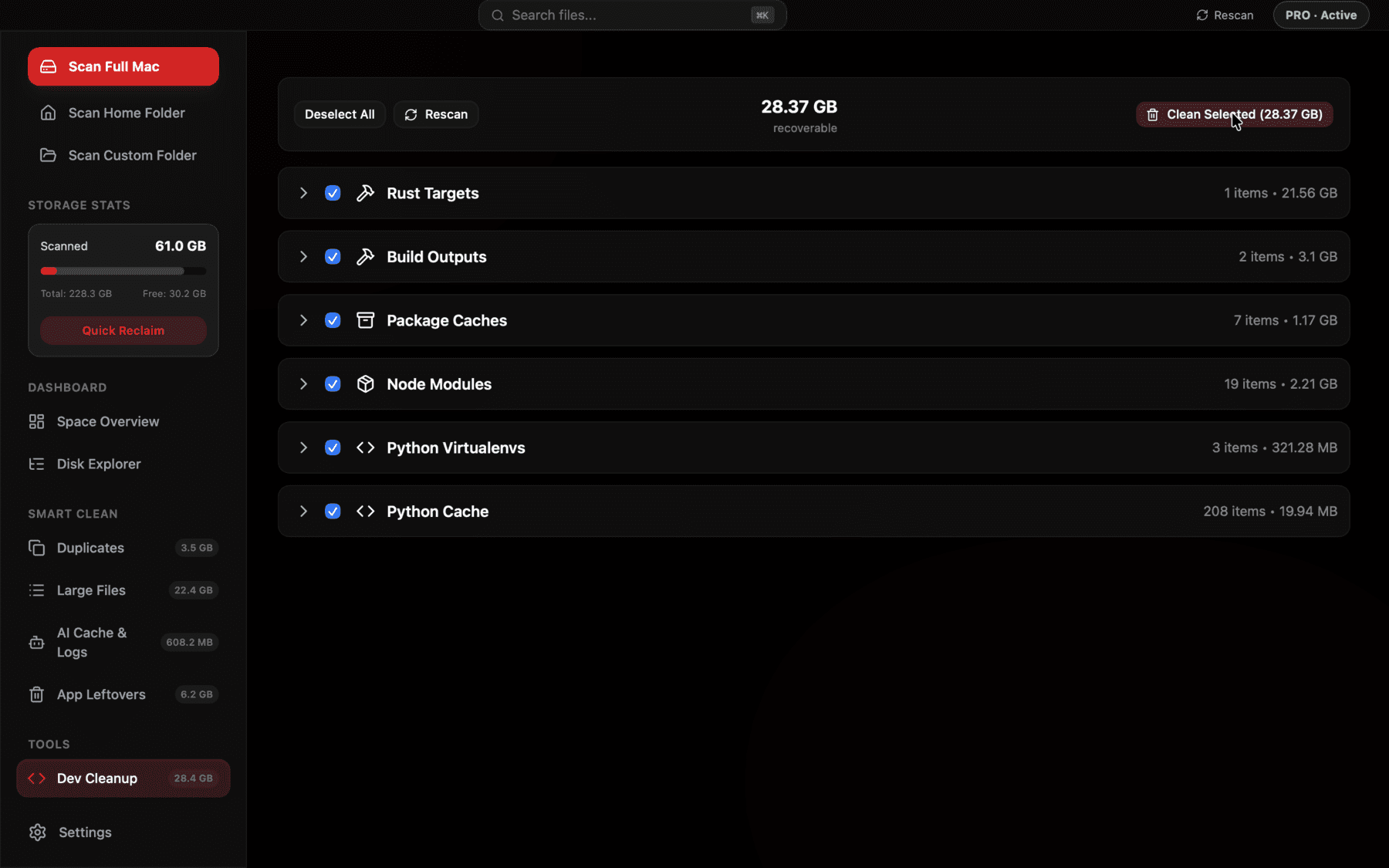
Docker's virtual disk shown as one sized, groupable item next to your other dev caches, instead of a hidden multi-gigabyte file inside Library.
Setting a disk size limit going forward
Docker Desktop's Settings → Resources → Advanced panel lets you cap the maximum size of the virtual disk. Setting a reasonable limit (60–100GB depending on your workflow) won't shrink what's already there, but it does force you to prune periodically rather than letting the disk creep upward indefinitely, since Docker will start refusing operations once the cap is hit.
It's worth pairing that size cap with a habit rather than relying on the cap alone: running docker system df once a week, or adding it to whatever routine you already use to check other project health, catches the slow creep well before you hit the limit and get interrupted mid-build by a disk-full error.
A note on Kubernetes and other local cluster tools
If you use Docker Desktop's built-in Kubernetes support, or a separate tool like minikube or kind for local cluster development, each of these maintains its own additional virtual disk or set of images layered on top of what Docker itself uses, and they're not covered by a plain docker system prune. minikube delete removes a minikube cluster and its associated disk image entirely; kind delete cluster does the same for kind. If you've experimented with local Kubernetes at any point, it's worth checking whether one of these is still sitting around from a project you finished months ago.
How much this typically adds up to
For a developer who's used Docker regularly for a year or more — pulling images for different databases, testing multiple versions of a base image, building and rebuilding the same Dockerfile dozens of times — it's common for the combination of images, stopped containers, orphaned volumes, and build cache to reach 30–70GB before a first cleanup. Teams that use Docker Compose for local development, spinning up several services at once, tend to land at the higher end of that range, since each service's image and any database volumes it creates persist independently.
The good news is that unlike some other categories of developer cache, Docker's own bookkeeping (docker system df) tells you exactly what's reclaimable before you delete anything, which takes much of the guesswork out of a cleanup pass compared to, say, deciding whether an old project's node_modules is still needed.
A quick reference for the safest order to try things in
If you're not sure where to start, a reasonable order is: check docker system df first to see the real breakdown, run docker system prune (safe, no argument needed) to clear the obviously stale layers, review docker system df -v to look specifically at any large named volumes before deciding whether docker system prune -a --volumes is worth the risk, and only then consider a full VM restart or Docker.raw reset if the Mac-side file size still hasn't dropped to match. Working through it in that order avoids reaching for the most destructive option before you've confirmed the gentler ones didn't already solve the problem.
It's worth repeating this whole sequence periodically rather than treating it as a once-off fix. A developer who builds and tests containers daily can watch Docker's disk usage creep back up within a few weeks of a cleanup, simply from the normal cycle of pulling updated base images and rebuilding after Dockerfile changes — which is exactly the kind of recurring, low-effort maintenance task that's easy to let slide until the next time disk space becomes a visible problem.
The prune and troubleshoot commands above are still the correct way to actually reclaim space inside Docker's own accounting — nothing bypasses that. What a disk scanner adds is visibility: Docker.raw sits inside a Containers folder most people never open, so it's easy to forget it exists at all until you're specifically looking for what's using space. Reclaim's Dev Cleanup view surfaces it next to your other developer caches so you notice it's grown before it becomes the single largest thing on your drive.
That visibility matters most for the exact reason Docker's storage model is confusing in the first place: most people don't check du -sh on a Containers folder buried in Library on a regular schedule, and Docker Desktop's own UI doesn't proactively warn you when the virtual disk is approaching a size that's actually a problem. Seeing it flagged alongside node_modules and DerivedData, rather than needing to remember it's a separate thing to check, is often what prompts the prune in the first place.
Frequently asked questions
Where does Docker Desktop store its data on a Mac?
In a virtual disk file at ~/Library/Containers/com.docker.docker/Data/vms/0/data/Docker.raw (or Docker.qcow2 on older versions). Everything inside Docker — images, containers, volumes — lives inside this one file.
Why doesn't Docker's disk usage go down after I delete images?
Deleting images and containers frees space inside Docker's virtual machine, but the underlying virtual disk file on your Mac often doesn't automatically shrink to reclaim that freed space on the host filesystem. Restarting Docker Desktop or using its Troubleshoot → Clean/Purge option usually resolves this.
What's the safest Docker cleanup command to run regularly?
docker system prune removes stopped containers and dangling images without touching anything still in use, making it safe to run routinely. docker system prune -a --volumes is more thorough but can delete volume data you might still need, so use it deliberately.
How do I see what's taking up space inside Docker?
Run docker system df for a category breakdown (images, containers, volumes, build cache) or docker system df -v for a verbose per-item listing with individual sizes.
Can I set a maximum size for Docker Desktop's disk usage?
Yes. Docker Desktop → Settings → Resources → Advanced has a disk size limit setting. It caps future growth rather than shrinking existing usage, but it forces periodic pruning instead of unlimited growth.
Is it safe to delete Docker.raw directly?
Only as a last resort with Docker Desktop fully quit. It deletes every image, container, and volume Docker has, equivalent to a factory reset — Docker Desktop recreates a fresh, empty virtual disk the next time it launches.
See exactly what’s using your disk space.