Xcode's DerivedData Folder Is a Storage Black Hole — Here's How Big It Gets
If you develop for iOS or macOS, there's a folder on your Mac that's probably larger than you think and that you've almost certainly never opened in Finder: ~/Library/Developer/Xcode/DerivedData. It's where Xcode stashes build products, module caches, code indexes, and logs for every project you've ever built — and unlike node_modules, it doesn't even map cleanly to one folder per project you can eyeball.
It's common for this single folder to reach 20–60GB on a Mac that's been used for iOS development for a year or two, sitting there invisibly because Xcode never prompts you to clean it and Finder buries ~/Library by default.
What makes DerivedData sneakier than a typical dependency cache is that Xcode itself gives you almost no visibility into how large it's gotten. There's no in-app storage indicator, no warning when a project's build cache balloons, and no built-in prompt to clear entries for projects you've long since abandoned. The only way most developers ever learn how big it is is by stumbling on it while trying to figure out why their startup disk is suddenly nearly full.
What actually lives in DerivedData
Xcode creates a separate subfolder inside DerivedData for every project you've opened, named with the project name plus a random-looking hash suffix (like MyApp-fkuvyrjqbqzqajcbchgvakLzslo). Each of these subfolders contains build products (the compiled app and intermediate object files), the module and index caches Xcode uses for autocomplete and jump-to-definition, and logs from previous builds and test runs.
None of it is source code, and none of it is meant to persist forever — it's a cache in the truest sense, regenerated automatically the next time you build. The catch is that Xcode doesn't reuse the same folder across sessions particularly well and rarely cleans up subfolders for projects you've since moved, renamed, or deleted, so DerivedData accumulates orphaned entries for projects that no longer even exist on disk.
This matters more than it sounds like it should, because the hash suffix on each subfolder makes it hard to tell at a glance which one belongs to which project once you have more than a handful. A folder named MyApp-fkuvyrjqbqzqajcbchgvakLzslo doesn't tell you whether MyApp is a project you use daily or one you deleted from your Applications folder a year ago — you have to open it and check the build logs or compare timestamps to know for sure.
Checking the damage
A single command gives you the total: du -sh ~/Library/Developer/Xcode/DerivedData. To see which project is responsible for the most space, break it down per subfolder:
- du -sh ~/Library/Developer/Xcode/DerivedData/* | sort -rh — sizes every project's DerivedData subfolder, largest first.
- ls -lt ~/Library/Developer/Xcode/DerivedData — sorts subfolders by last-modified date, useful for spotting entries for projects you haven't opened in a long time.
- find ~/Library/Developer/Xcode/DerivedData -maxdepth 1 -type d | wc -l — a quick count of how many project subfolders exist in total, which on its own is often a surprising number for anyone who's opened more than a handful of sample projects or tutorials over the years.
Clearing it the built-in way
Xcode has a menu option for this: with a project open, go to Xcode → Settings → Locations, click the arrow next to the Derived Data path to reveal it in Finder, and delete subfolders manually — or use Product → Clean Build Folder (Cmd-Shift-K) to clear the build products for just the current project without touching the rest.
For a full wipe from Terminal, rm -rf ~/Library/Developer/Xcode/DerivedData/* removes everything at once. It's safe to run with Xcode closed — the entire folder is a cache, and Xcode rebuilds whatever subfolder it needs the next time you open a project and build. The only cost is that your next build will be a clean build rather than an incremental one, which takes longer than usual for that one build.
Some developers set up a periodic reminder rather than relying on memory — a simple cron job or a recurring calendar entry that prompts a du -sh check every month or two is enough to catch DerivedData before it quietly climbs into double-digit gigabytes again, since nothing else on macOS will flag it for you.
Seeing it without digging through Library folders
The manual routes above work, but they require knowing this exact path exists, remembering the right flags, and periodically re-running du to see if it's crept back up. Reclaim's Dev Cleanup view detects DerivedData along with the other developer caches on your disk, sizes it automatically, and lets you clear it in the same pass as everything else — so you're not treating Xcode's cache as a special manual chore separate from your node_modules and build folders.
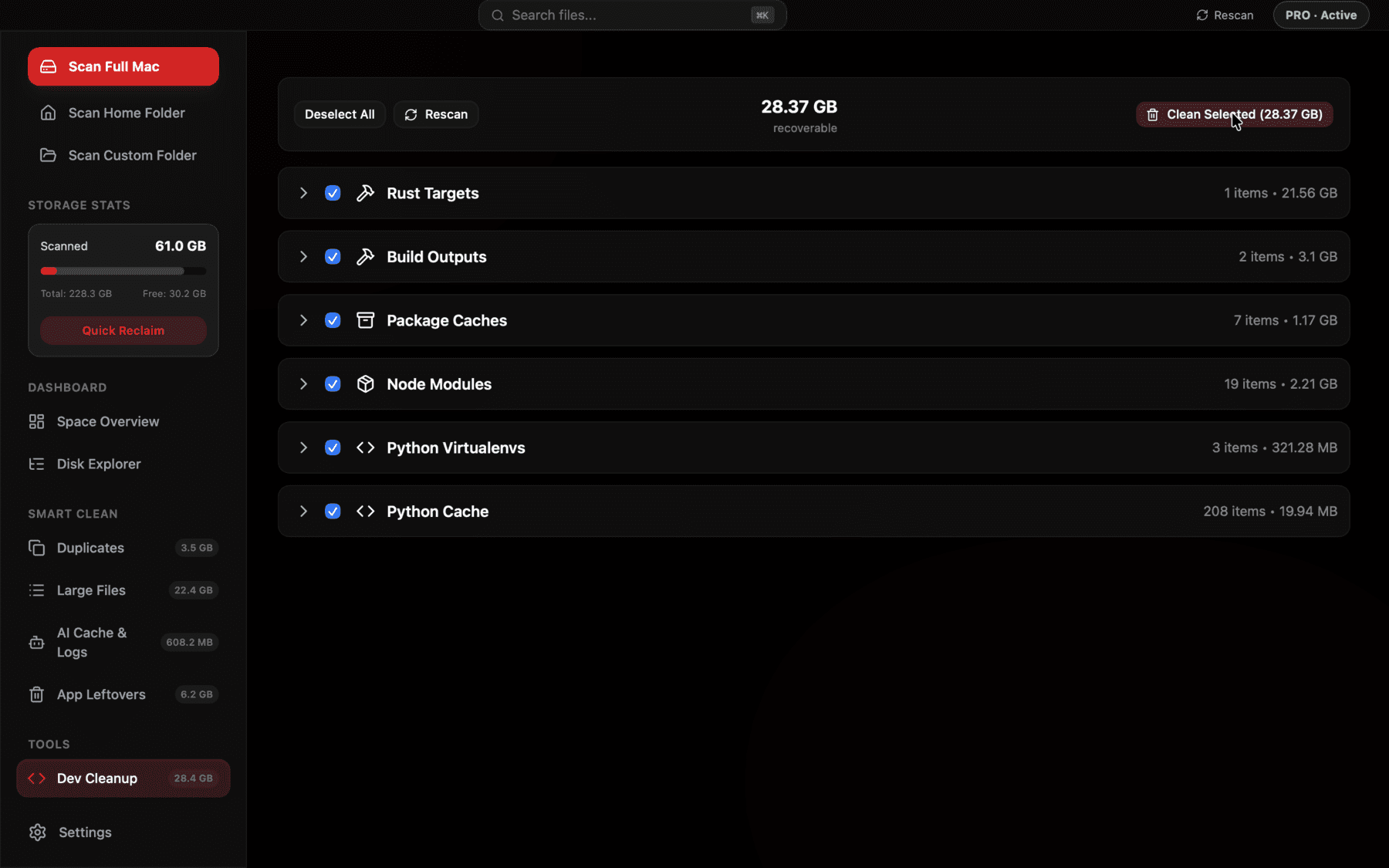
DerivedData sized and grouped with your other dev caches, so clearing Xcode's build artifacts is one bulk action, not a separate Library hunt.
It's not the only Xcode-related storage sink
DerivedData is usually the biggest single offender, but a few neighboring folders are worth knowing about too, since they add up alongside it, and none of them are covered by clearing DerivedData alone:
- ~/Library/Developer/CoreSimulator/Devices — every iOS Simulator device you've ever created, each with its own installed apps, app data, and sometimes cached content. Old simulator runtimes and unused device pairs can add several gigabytes. xcrun simctl delete unavailable removes simulator devices for runtimes you no longer have installed.
- ~/Library/Developer/Xcode/Archives — archived builds created when you use Product → Archive to submit to the App Store or export an IPA. These aren't safe to blanket-delete the way DerivedData is, since they're not regenerable — check before removing old ones.
- ~/Library/Developer/Xcode/iOS DeviceSupport — symbol and debug information for each iOS version you've connected a physical device running, which Xcode keeps so it can symbolicate crash logs. Old entries for iOS versions you no longer test against can be removed.
A sane cleanup cadence
Because DerivedData is entirely regenerable and Xcode doesn't need any of it to keep working correctly, there's little downside to clearing it more often than feels necessary. Many iOS developers clear it whenever Xcode starts behaving oddly — stale autocomplete, indexing that seems stuck, or build errors that don't match the actual code — since a corrupted index cache inside DerivedData is a common, if unglamorous, cause of exactly those symptoms.
How often you should proactively clear it, rather than only in response to a bug, depends on how many different projects you build regularly. A developer working in one or two apps day to day can probably leave DerivedData alone for months at a time, since the folder mostly just holds incremental build state for projects still in active use. A developer who bounces between many client projects, sample apps, or tutorials will see it grow much faster, since Xcode keeps a full subfolder for every project it's ever built, whether or not you've opened that project again since.
Relocating DerivedData isn't worth the trouble
It's technically possible to configure Xcode to store DerivedData somewhere other than the default location — Xcode → Settings → Locations lets you point it at a custom path, including an external drive. In practice, this rarely solves the underlying problem: it just moves the same growth pattern to a different disk rather than addressing why the folder keeps expanding in the first place, and it can introduce build slowdowns if the custom location is on slower external storage. Periodically clearing the folder, rather than relocating it, remains the more effective fix for most developers.
The same logic applies to SPM (Swift Package Manager) caches, which live inside DerivedData as of recent Xcode versions rather than in a separate location the way CocoaPods keeps its Pods/ folder inside each project. Clearing DerivedData clears the resolved package checkouts too, which means your next build will need to re-resolve and re-fetch Swift package dependencies — usually a quick step, but worth knowing if you're on a slow connection when you clear it.
CocoaPods and its own storage footprint
If your projects use CocoaPods rather than (or alongside) Swift Package Manager, there are two more locations worth knowing about, entirely separate from DerivedData. Each project gets its own Pods/ folder with the actual installed pod source — regenerable by running pod install again, and safe to delete the same way node_modules is. CocoaPods also keeps a shared cache of downloaded pod specs and source archives at ~/Library/Caches/CocoaPods, which pod cache clean --all clears in one command, freeing space that's shared across every project using CocoaPods rather than tied to just one.
Between DerivedData, per-project Pods/ folders, and the shared CocoaPods cache, a Mac used for a few years of iOS development can easily be carrying three separate multi-gigabyte caches that nothing on the system ever surfaces together — which is exactly the kind of scattered, invisible bloat this whole category of developer tooling tends to produce.
How much this typically adds up to
For a developer who's worked on more than a handful of iOS or macOS apps over the years, it's not unusual for DerivedData alone to account for 20–60GB, with CocoaPods caches and old simulator devices adding another 5–20GB on top. That combination frequently ends up being the single largest reclaimable category on an iOS developer's Mac — bigger than photos, bigger than downloads, and much bigger than most people would guess before actually checking.
Because none of it holds anything you can't regenerate — every build product, every index, every downloaded pod, every simulator app install comes back automatically the next time you need it — there's little reason to leave it sitting there once you know it's there. The only real cost of clearing all of it at once is time: your next build across every project will be a clean build, and any simulators you removed will need to be recreated the next time you want to test on that device configuration.
Frequently asked questions
Where is Xcode's DerivedData folder located?
At ~/Library/Developer/Xcode/DerivedData. It's hidden by default since ~/Library is a hidden folder in Finder, but Terminal or Cmd-Shift-G in Finder's Go To Folder dialog will get you there directly.
Is it safe to delete Xcode DerivedData?
Yes. It's entirely regenerated the next time you build each project. Deleting it just means your next build per project will be a full build instead of incremental, which takes a bit longer than usual.
How do I clear DerivedData for just one project?
Use Product → Clean Build Folder (Cmd-Shift-K) in Xcode with that project open, or manually delete its specific subfolder inside ~/Library/Developer/Xcode/DerivedData (named after the project plus a hash suffix).
Why does clearing DerivedData sometimes fix Xcode bugs?
DerivedData holds Xcode's code index and module caches, which power autocomplete and navigation. If that cache gets out of sync with your actual code, clearing it and letting Xcode rebuild the index often resolves stale-autocomplete or phantom-error symptoms.
Does the iOS Simulator also use significant disk space?
Yes, separately from DerivedData. Each simulator device under ~/Library/Developer/CoreSimulator/Devices stores its own installed apps and data, and old unused runtimes can add several gigabytes; xcrun simctl delete unavailable clears devices for runtimes no longer installed.
Should I delete the Xcode Archives folder too?
Be more careful there — archives aren't regenerable the way DerivedData is. Only delete archives for builds you're certain you don't need to reference or resubmit later.
See exactly what’s using your disk space.