Why "Other" Storage on Your Mac Is So Huge
Open About This Mac → Storage and you'll see a colorful bar broken into Apps, Documents, Photos, and a handful of other categories — and then, on a lot of Macs, one segment labeled "Other" that's larger than all the rest combined. There's no button next to it, no drill-down, no explanation. It's just a number, sitting there daring you to figure out what it means on your own.
"Other" isn't a mistake or a bug in the storage bar. It's Apple's catch-all bucket for every file macOS's storage scanner couldn't confidently sort into one of its named categories — which turns out to be a huge amount of what actually lives on a modern developer or power-user Mac. On a machine used mainly for browsing and email, Other might be a few gigabytes. On a machine used for software development or local AI experimentation, it's routinely the single largest category on the whole bar.
This post breaks down exactly what ends up in "Other," why Apple's tool can't categorize it, and how to see the real breakdown yourself using Terminal — plus what's actually safe to remove once you know what you're looking at.
It gets worse the longer you've owned the Mac
Other doesn't grow at a fixed rate — it compounds with how long you've been actively using the machine for varied work. A Mac that's a few months old, freshly set up, might have a nearly negligible Other segment. The same Mac three years later, after dozens of finished projects, several app installs and uninstalls, and a handful of experiments with local AI tools, will typically show a dramatically larger Other category, even if your actual current working set of files hasn't grown much at all. This is the core reason Other feels disproportionate on an older, well-used Mac: it's an accumulation of years of regenerable byproduct, not a reflection of how much you're actively using right now.
What actually gets classified as "Other"
The storage bar's categorization is based on file type and known app associations — a .jpg goes to Photos, a .pdf near Documents, an app bundle goes to Applications. Anything that doesn't fit one of those recognizable patterns gets bucketed into Other. In practice, that means:
- Developer caches and build artifacts — node_modules, .next build output, Xcode DerivedData, Rust target/ directories, none of which look like a recognizable file type to the scanner.
- Disk images and archives — .dmg, .pkg, .zip files sitting in Downloads, which the scanner can't peek inside to categorize their contents.
- App support files and caches under ~/Library — most apps store working data here, and it's rarely tagged with the app's own category.
- Virtual machine and container images from Docker, Parallels, or VMware Fusion, which can each be tens of gigabytes and look like a single opaque blob to any generic scanner.
- AI model weights from tools like Ollama or LM Studio — large binary files with no metadata suggesting what they contain, often several gigabytes each.
Why Apple's own tool can't fix this
The Storage Management window (About This Mac → Storage → Manage) does offer a few real actions — reviewing large files, managing Photos originals versus optimized versions, emptying Trash automatically. But it's a fixed set of built-in categories with no way to add your own, and no way to expand "Other" into a sorted list. It was designed around a general consumer's file types, not around a developer's node_modules folders or an AI hobbyist's downloaded model checkpoints.
This isn't an oversight so much as a scope decision — Apple's storage tooling is built to serve the widest possible audience with the least amount of complexity in the UI, and "here's a sorted list of your 200 largest opaque binary blobs" doesn't fit that goal. The tradeoff is that anyone whose disk usage skews toward development or specialized tooling gets a categorization system that was never really built with them in mind.
Break down Other yourself with Terminal
The most direct way to see what's inside Other is to scan your home directory by size rather than by Apple's categories. Start broad, then narrow in on whatever folder turns out to be largest:
- du -sh ~/* 2>/dev/null | sort -rh | head -20 — ranks the top-level folders in your home directory by actual size, largest first.
- du -sh ~/Library/* 2>/dev/null | sort -rh | head -20 — Library is almost never checked manually but frequently holds the bulk of what's classified as Other.
- find ~ -iname 'node_modules' -type d -prune -exec du -sh {} \; 2>/dev/null — lists every node_modules folder on your Mac with its size, one of the most common Other contributors for developers.
- du -sh ~/.ollama/models 2>/dev/null — checks locally downloaded AI model weights if you use Ollama.
- docker system df — if you have Docker installed, shows image, container, and volume space separately, since Docker's own disk usage is a very common Other contributor that's easy to overlook entirely.
Reading the results
Sort the output and look for anything in the multi-gigabyte range you don't immediately recognize. It's common to find several node_modules folders from projects finished months ago, a DerivedData folder that's grown past 20GB from repeated Xcode builds, or a Downloads folder full of old installer images nobody ever deleted after using them once. It's also worth checking ~/Library/Containers and ~/Library/Application Support specifically, since sandboxed and non-sandboxed apps store their working data in these two locations respectively, and both survive an app's uninstall more often than people expect.
Getting the categorized view without the manual scanning
Running du repeatedly across dozens of folders works, but it's slow and easy to miss things, especially nested caches several folders deep that don't show up until you specifically think to look inside a particular subfolder. Reclaim's treemap scans your entire disk and visually groups everything by size and category — including the exact things Apple's storage bar can't name, like dev caches, AI model files, and app leftovers — so you get the actual answer to "what's in Other" in one scan instead of a dozen Terminal commands run in sequence.
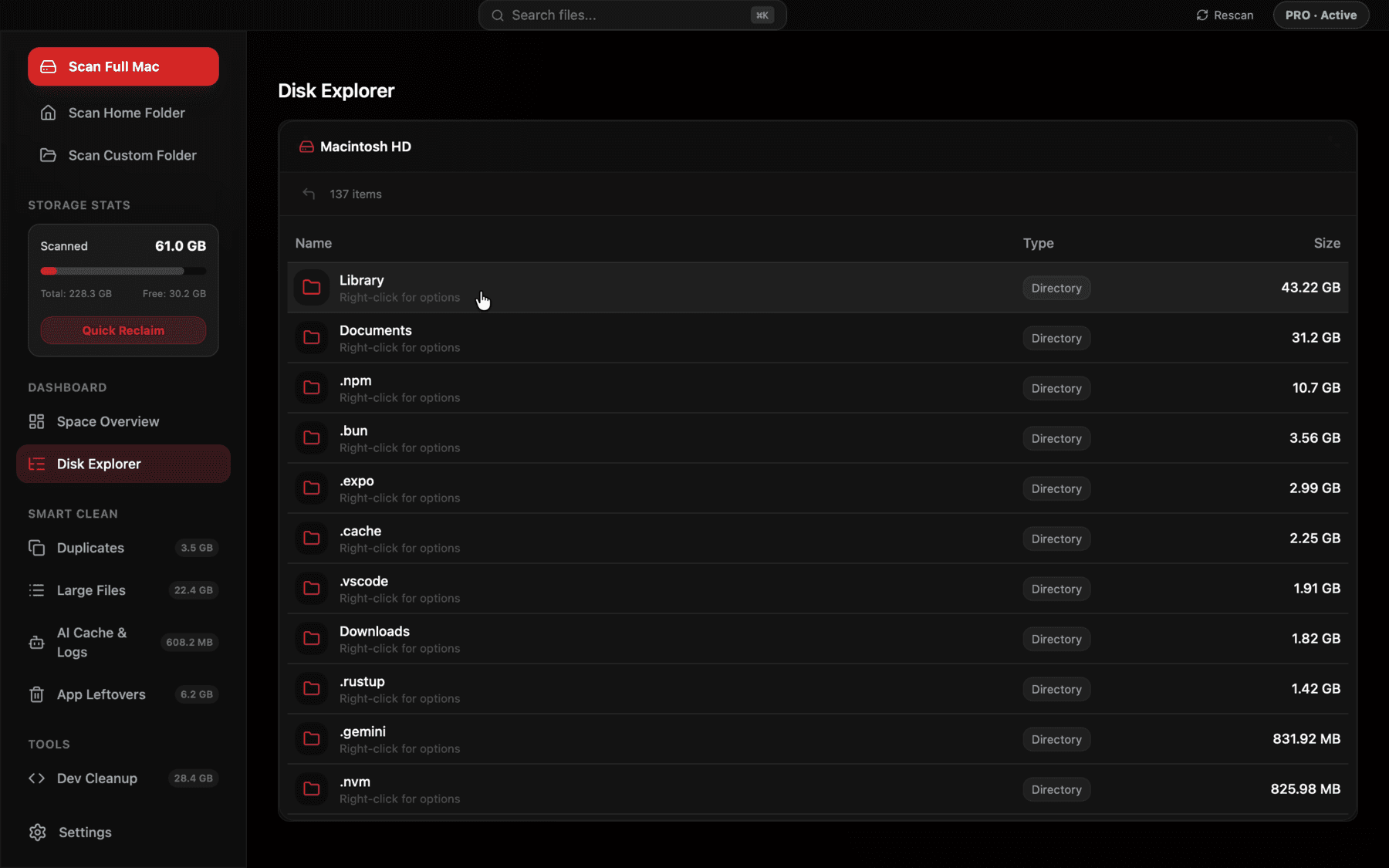
Every folder is sized and labeled by what it actually is — dev cache, app data, AI models — instead of one unlabeled Other bucket.
What to do once you've identified it
Once you can see what's actually inside Other, the decisions get easy. Regenerable dev caches (node_modules, DerivedData, build output) are safe to clear — they'll rebuild automatically next time you need them. Old installer .dmg and .pkg files in Downloads can go once you've confirmed the app installed correctly. AI model weights you're not actively using are worth checking against ~/.ollama/models or your LM Studio models folder before removing, since re-downloading a large model takes time and bandwidth, and it's easy to forget which specific model version you had if you don't check first.
Anything in ~/Library/Application Support tied to an app you still use day-to-day is worth leaving alone unless you specifically know it's a cache subfolder — some apps mix real user data with cache data in the same parent folder, and it's not always obvious from the folder name alone which is which.
A closer look at container storage for sandboxed apps
One of the least-understood contributors to Other is app sandboxing. Since macOS moved most Mac App Store apps (and many others) to a sandboxed model, each sandboxed app gets its own isolated folder under ~/Library/Containers/<bundle-id>, holding its preferences, caches, and any files it's been granted access to. This is a security feature — it limits what an app can touch on your filesystem — but it also means an app's data footprint is spread across a folder named after its bundle identifier rather than something human-readable, which makes it nearly impossible to identify by glancing at Finder.
Run ls ~/Library/Containers to see the full list of bundle identifiers with container folders on your Mac, then du -sh ~/Library/Containers/<name> on any that look unfamiliar or oversized. It's common to find containers for apps you uninstalled a year ago still sitting there, several hundred megabytes each, because uninstalling a sandboxed app from Finder doesn't reliably clean up its container folder in every macOS version.
How much Other is actually normal
There's no official Apple number for what counts as "too much" Other, but a rough guideline based on typical usage patterns is useful. A Mac used mainly for browsing, email, and office documents with no development tools installed might show 5-15GB in Other, mostly browser caches and app support data. A Mac with a couple of active development environments and a handful of finished projects often lands in the 30-80GB range once node_modules and DerivedData are factored in. A Mac that's also running Docker regularly, or has downloaded several local AI models to experiment with, can push well past 100GB in Other without anything being wrong — it's just multiple regenerable or re-downloadable categories stacking on top of each other.
The number itself matters less than whether you can explain it. If Other is 60GB and a scan shows 40GB of node_modules folders from finished projects plus 15GB of old DerivedData plus a handful of leftover Application Support folders, that's an explained, comfortably reclaimable 60GB. The problem isn't the size — it's not being able to see what's in it at all, which is the situation Apple's storage bar leaves you in by default.
Frequently asked questions
What exactly counts as "Other" storage on a Mac?
Any file macOS's storage scanner can't confidently sort into a named category — mainly developer caches, disk images, app support files under ~/Library, VM/container images, and AI model weights.
Can I click into the Other category in About This Mac to see what's in it?
No, Apple's storage bar doesn't offer a drill-down for Other. You have to inspect it manually with Terminal commands like du, or use a third-party tool that categorizes files by content.
Is it safe to delete files classified as Other?
It depends what they are — regenerable dev caches and old installers are safe, but check before deleting anything under Application Support for an app you still use, since that can include your settings or saved data.
Why is Other bigger on a developer's Mac than a typical user's Mac?
Developers accumulate many small, regenerable caches per project — node_modules, DerivedData, Docker images, target/ folders — none of which macOS's scanner recognizes as a distinct category, so they all fall into Other.
Does emptying the Trash reduce the Other category?
Sometimes, if the deleted files were being counted there, but Trash contents are usually tracked separately until emptied, so check df -h before and after to confirm it actually freed space.
Does Docker Desktop's disk usage show up under Other?
Yes, typically — Docker's images, containers, and volumes are large opaque files that the storage scanner can't classify, so they usually land in Other rather than a Docker-specific category.
See exactly what’s using your disk space.