"About This Mac" Storage Tab Is Lying to You
"Lying" is a strong word, but it's the word people reach for after staring at About This Mac → Storage for the third time in a week and watching the numbers not add up. You free up 15GB deleting old projects, refresh the window, and it still shows the same available space it did an hour ago. Or the categories sum to visibly less than the total used space, with no explanation for the gap anywhere in the interface.
The storage bar isn't fabricating numbers, but it is built around assumptions — cached calculations, background indexing, and category buckets — that make it a poor tool for anyone who actually needs an accurate, current answer right now. This post explains where the discrepancies come from and how to get numbers you can actually trust, using the same commands Apple's own engineers would use to check a filesystem's real state.
A concrete example of the mismatch
Here's a scenario that plays out often enough to be worth walking through directly: you delete a 20GB Xcode DerivedData folder through Finder, empty the Trash, and immediately reopen About This Mac → Storage expecting to see 20GB more available. Instead the number is unchanged, or only partially reflects it. This isn't a sign the deletion failed — running df -h / at that moment would show the space genuinely freed at the filesystem level. It's that About This Mac's own cached total hasn't been recalculated since before you deleted anything, and won't be until macOS decides to refresh it in the background, which can be anywhere from a few minutes to considerably longer depending on system load.
It doesn't refresh in real time
The storage bar is calculated periodically in the background, not recalculated live every time you open the window. macOS caches the result and only recomputes it occasionally, or when you explicitly trigger it by opening Storage Management. This means recent deletions — or recent additions, like a fresh Docker pull or a large video import — often don't show up for minutes or, in some cases, hours after the fact.
This lag is by design, not a bug: recalculating exact storage usage across an entire volume is not a cheap operation, and doing it live on every window open would make the Storage pane noticeably slower to load. Apple traded accuracy for responsiveness, which is a reasonable choice for a glance-and-close UI, but a poor one if you're actively trying to verify that a cleanup worked.
The categories don't cover everything, and they overlap
Apple's categories (Apps, Documents, Photos, Messages, Mail, and so on) are based on file type and known app associations, not on a complete accounting of every byte on disk. A file can be miscategorized, and large swaths of disk usage — developer caches, VM images, most of ~/Library — fall outside all of the named categories entirely and land in Other, which we cover in more depth in another post. The result is a bar whose segments rarely sum cleanly to the total used space shown at the top, which is exactly the kind of discrepancy that makes people distrust the whole tool.
Purgeable space is counted, but not really usable
Some of the "available" space macOS reports is purgeable — space technically reclaimable (like old iCloud-cached files or local snapshots) that macOS will free automatically under pressure, but that isn't actually free right now. This is why you can see 40GB "available" and still get a low-disk-space warning: a chunk of that 40GB isn't really sitting empty, it's provisionally available and macOS hasn't decided to reclaim it yet, and won't until it actually needs to.
This distinction matters most right when you're deciding whether to buy a bigger drive or start a new project that needs headroom — a Mac reporting 40GB available with half of that purgeable behaves very differently under sudden write pressure than a Mac with 40GB of genuinely free blocks.
Apple's own documentation is fairly upfront about this once you go looking for it, but it's not surfaced anywhere in the actual Storage Management UI — there's no indicator distinguishing purgeable from genuinely free space in the numbers you're shown, which is arguably the single biggest reason the tool feels untrustworthy under pressure.
Get numbers you can actually trust
Terminal bypasses the cached UI calculation and asks the filesystem directly, which is why it's worth reaching for whenever the About This Mac number feels suspicious:
- df -h / — shows real current usage and availability on your Data volume, calculated fresh at the moment you run it.
- diskutil apfs list — shows the full container breakdown, including how much space is reserved versus purgeable across all volumes sharing the container.
- du -sh ~/Library/Caches — a quick check on one of the largest hidden categories that never appears as its own line in About This Mac.
A related confusion: iCloud and "optimized" storage
A separate but related source of mismatched numbers is Optimize Mac Storage, the setting that lets Photos and Desktop/Documents keep only a local thumbnail or lower-resolution copy of a file while the full original stays in iCloud. When this is on, About This Mac's Photos category can understate how much local disk space Photos is actually using at any given moment, since it fluctuates based on which files macOS has decided to keep locally versus offload, based on your available space and recent access patterns.
This cuts in the opposite direction from most of the other issues covered here — instead of a hidden category inflating your used space, this one can make a category look smaller than a naive expectation, since "my Photos library is 200GB" doesn't necessarily mean 200GB is sitting on your local disk right now.
Force Storage Management to actually recalculate
Opening About This Mac → Storage → Manage sometimes triggers a fresh recalculation, but it can still take a noticeable amount of time and doesn't always reflect very recent changes. If you've just deleted a large amount of data and want to confirm it's really gone, df -h is faster and more reliable than waiting on the GUI, and it won't give you a number that's secretly still counting files you already removed.
Seeing the real picture without cross-referencing five tools
The reason people end up cross-referencing About This Mac, Storage Management, and Terminal output is that none of them alone gives a complete, current picture. Reclaim scans your disk directly rather than relying on cached system metadata, so the treemap you see reflects what's actually on disk right now, broken into categories that match how the space is actually being used — not just the handful Apple's UI recognizes.
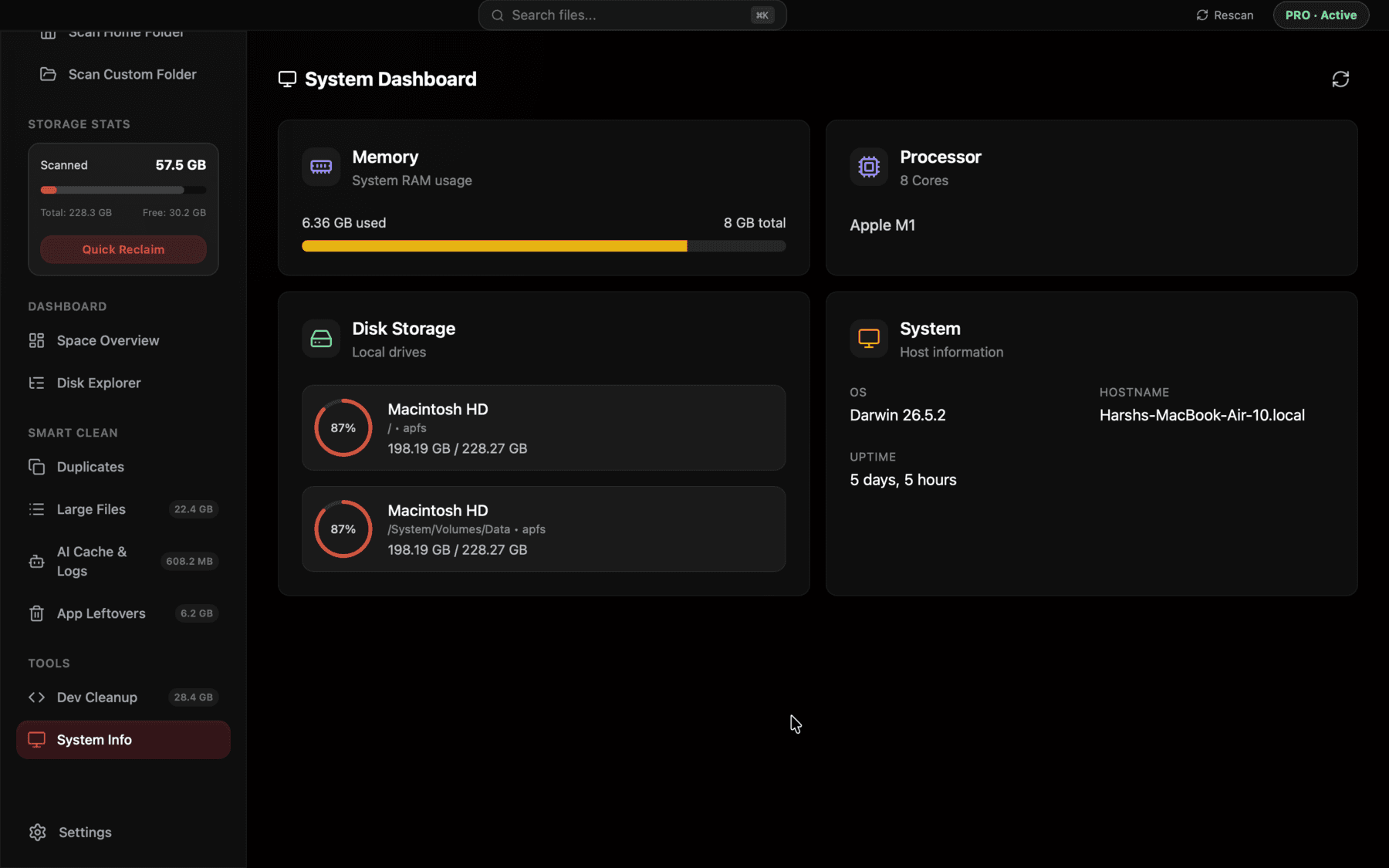
A live breakdown of container, purgeable, and used space side by side, instead of a cached percentage bar that can lag behind reality.
What to actually check when the numbers don't match
If About This Mac says you're low on space but your files don't add up, run df -h / first to get the real used and available numbers, then check tmutil listlocalsnapshots for local Time Machine snapshots holding purgeable space, and du -sh ~/Library/* to find the largest hidden folders. Between those three, you'll almost always find where the discrepancy is coming from, and you'll have it in a few minutes rather than after a long back-and-forth with the Storage Management window.
Why two Macs on the same macOS version can disagree
It's common to compare notes with a colleague on an identical Mac model and macOS version and find your storage bars behave completely differently in how quickly they update or how their categories are split. This isn't a bug affecting only one of you — the storage scanner's cached results depend on when it last ran, which depends on things like how recently you opened Storage Management, how much file activity has happened since, and even how Spotlight's own indexing is scheduled in the background on that particular Mac.
This variability is exactly why the storage bar makes a poor basis for comparing two machines, or for deciding something as consequential as whether you need a hardware upgrade. Two identical Macs can show meaningfully different "available" numbers purely because of caching timing, even if their actual free disk space is nearly identical at the filesystem level.
What Storage Management actually gets right
It's worth giving credit where it's due: Storage Management's recommendations panel (Store in iCloud, Optimize Storage, Empty Trash Automatically, Reduce Clutter) does trigger real, working features, and its large-files list is genuinely useful for spotting individual big files you forgot about, like an old video export or a large VM image. The tool isn't useless — it's just narrower and slower to update than most people expect from something that looks like a live dashboard.
The mistake is treating the percentage bar as a real-time source of truth for decisions like "did that cleanup work" or "do I actually need a bigger drive." For those questions, a command that reads the filesystem directly, rather than a cached UI summary, is going to give you a more defensible answer every time.
Frequently asked questions
Why doesn't About This Mac update after I delete files?
The storage bar is calculated periodically and cached, not recalculated live on every open. Run df -h / in Terminal for the current, real-time number instead of waiting for the UI to refresh.
What is purgeable space on a Mac?
Space macOS considers reclaimable automatically under pressure — like local Time Machine snapshots or cached iCloud files — that shows as available but isn't sitting empty right now the way a deleted file's space would be.
Why do the storage bar's categories not add up to the total used space?
Apple's categories only cover recognizable file types and known app data. Large amounts of disk usage, especially developer caches and files under ~/Library, fall outside every named category and land in Other instead.
Is diskutil apfs list a safe command to run?
Yes, it's read-only — it only displays information about your APFS container and volumes, it doesn't modify or delete anything.
How do I force macOS to recalculate storage accurately?
There's no reliable force-refresh for the About This Mac bar. Use df -h / in Terminal instead, which always reflects the current real state of the filesystem.
Why does Storage Management take so long to load sometimes?
It's recalculating category totals across your whole Data volume, which is a genuinely expensive scan on a large or heavily used disk, unlike df which just reads the filesystem's own summary counters.
See exactly what’s using your disk space.