How to Find and Delete Old node_modules Folders Across All Your Projects
If you've been writing JavaScript for a while, you almost certainly have node_modules folders scattered across dozens of project directories you haven't opened in months — some in ~/Projects, some in ~/Desktop, some in a folder you made for a coding bootcamp three years ago. The problem isn't finding one of them. It's finding all of them, reliably, without accidentally deleting something you still need.
This is a step-by-step approach: locate everything first, size it, decide what's actually safe to remove, then clean it up — either by hand or with a tool that does the scanning part for you. None of it requires anything beyond Terminal and a bit of patience, and the whole process typically takes under ten minutes even on a machine with years of accumulated projects.
Step 1: find every node_modules folder on disk
Open Terminal and start from a directory broad enough to catch everything — your home folder is usually the safest starting point:
- find ~ -name "node_modules" -type d -prune 2>/dev/null — lists the path of every node_modules folder under your home directory, suppressing permission-denied noise with 2>/dev/null.
- find ~ -name "node_modules" -type d -prune -exec du -sh {} + 2>/dev/null | sort -rh — the same search, but with a size next to each folder, sorted largest first.
- find ~ -name "node_modules" -type d -prune -exec du -sh {} + 2>/dev/null | sort -rh | head -20 — just the twenty biggest, which is usually where most of the reclaimable space lives.
The -prune flag matters here: without it, find would descend into every node_modules folder and separately match any nested node_modules inside it (which do exist, for packages with their own conflicting sub-dependencies), producing a much longer and less useful list. -prune stops the search at the first match in each branch, which keeps the output to exactly one line per top-level dependency folder — the number you actually care about.
If you'd rather not scroll a long terminal output at all, redirect it to a file first: find ~ -name "node_modules" -type d -prune -exec du -sh {} + 2>/dev/null > ~/Desktop/node_modules_report.txt, then open that file in any text editor and sort or search it at your own pace.
Step 2: figure out which ones are actually stale
Not every large node_modules folder is safe to remove — you don't want to nuke the dependency folder for the project you're actively debugging. A useful signal is how recently the project directory itself was modified, which you can check with find's -mtime flag or a quick ls -lt on the parent folder.
find ~ -name "node_modules" -type d -prune -mtime +90 -exec du -sh {} + 2>/dev/null lists only node_modules folders whose modification time is older than 90 days — a reasonable proxy for "I haven't touched this project in three months." Adjust the number to be more or less conservative. It's still worth glancing at the parent folder name before deleting anything the command turns up, since modification time can be misleading if you only opened the project to read a file rather than run npm install.
A more reliable but slower signal is checking the modification time of the project's actual source files rather than the node_modules folder itself — something like find . -maxdepth 2 -name "*.ts" -o -name "*.js" -newer node_modules will tell you whether any source file has changed more recently than the last install, which is a decent proxy for whether you've been actively working in the project since then.
It's also worth opening git log -1 --format=%cd inside each project you're unsure about, if it's a git repository — the date of the last commit is often a more trustworthy signal than any filesystem timestamp, since commits reflect actual work rather than incidental file touches from opening an editor or running a linter.
Step 3: delete with intention, not a single blanket command
It's tempting to pipe everything straight into rm -rf, but a safer pattern is to review the list, then delete folder by folder or in small batches:
- rm -rf node_modules — from inside a single project directory you've already decided to clear.
- find ~/old-projects -name "node_modules" -type d -prune -exec rm -rf {} + — scoped to a specific parent folder you know only contains archived work, rather than your entire home directory.
- npx npkill — an interactive community tool that lists node_modules folders with sizes and lets you select which to delete with arrow keys and space, which is a good middle ground between a raw find command and a GUI.
Doing the same scan without typing anything
The find-and-sort workflow above is exactly what a dedicated scanner automates — the difference is it does it across your entire disk in seconds, keeps the list interactive so you can bulk-select by project instead of typing separate commands, and routes every deletion through macOS Trash instead of rm -rf, so a folder you actually needed is still recoverable. Reclaim's Dev Cleanup view surfaces every node_modules folder it finds alongside other dependency and build caches, sized and grouped, so you're choosing from a list rather than re-running find with different flags until you trust the output.
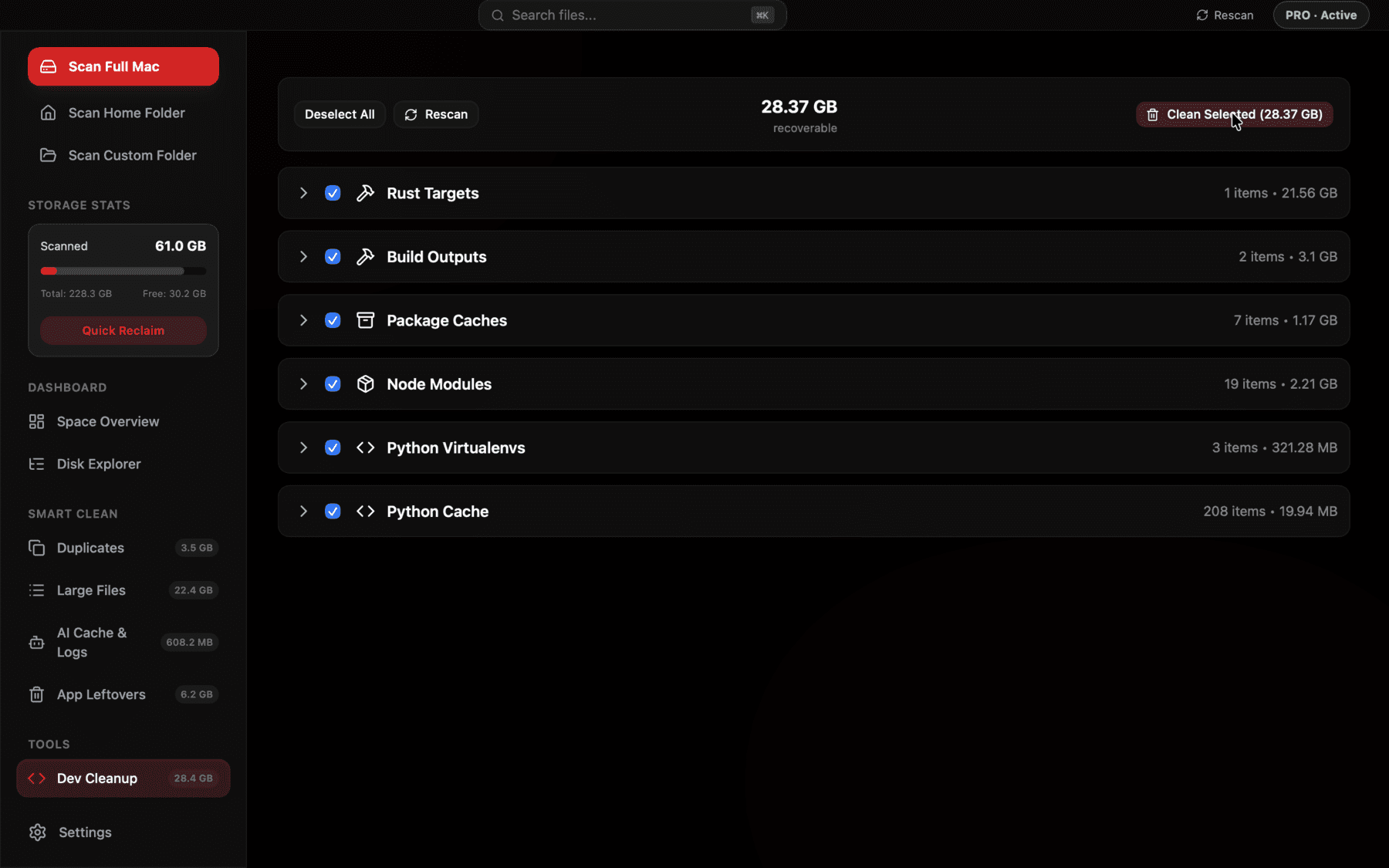
Old node_modules folders across every project on disk, found automatically and ready to bulk-select — no repeated find commands.
Whichever method you use, keep the lockfile and package.json intact — those are what let npm install, yarn install, or pnpm install rebuild the folder exactly as it was, with the same dependency versions, whenever you come back to the project. Never delete package-lock.json, yarn.lock, or pnpm-lock.yaml as part of a cleanup pass; those files are tiny and are the actual thing worth preserving.
Watch out for monorepos and workspaces
If a project uses npm/yarn/pnpm workspaces or a tool like Turborepo or Nx, there can be a node_modules folder at the repo root and additional ones nested inside individual packages. A blanket find and delete still works here, but reinstalling afterward needs to happen from the workspace root (npm install, yarn install, or pnpm install run once at the top level), not inside each sub-package, or the workspace linking between local packages won't be recreated correctly.
It's also worth checking whether a monorepo uses a tool-specific cache directory alongside node_modules — Turborepo, for instance, keeps a .turbo folder with cached build outputs that can itself grow into hundreds of megabytes over time, separate from any dependency folder, and is equally safe to delete since it's regenerated on the next build.
What to do if you regularly clone repos to review
If part of your job involves regularly cloning other people's repositories — reviewing pull requests, evaluating open-source tools, or working through coding challenges — you'll accumulate node_modules folders faster than someone who mostly works in a handful of long-running projects. A useful habit here is running npm install --production or an equivalent flag when you only need to run the code rather than develop it, since that skips devDependencies like test frameworks and linters that often account for a large share of a project's total dependency size.
For repos you're confident you'll never revisit, it's often simpler to just delete the whole clone rather than only its node_modules folder — there's rarely a reason to keep an empty shell of a project around once you've finished reviewing it.
If you clone the same handful of open-source repositories repeatedly to test different pull requests, it's also worth knowing that git worktrees let you check out multiple branches of the same repo into separate folders while sharing one .git history — which doesn't reduce node_modules duplication on its own, but does mean you're not re-cloning and re-installing the entire dependency tree from scratch every time you want to look at a different branch.
When a shallow clone is enough
If you only need to inspect a project's code without ever running or building it — checking how a library implements something, or reading through an issue's linked code — consider whether you need to clone it at all. GitHub's web-based code search and the built-in file browser cover a lot of that use case without touching your disk. When you do need a local copy, git clone --depth 1 pulls only the latest commit rather than the full history, which shaves time and a small amount of space off the clone itself, though it has no effect on how large node_modules ends up being once you install.
A simple maintenance habit
Once you've cleared the backlog, a quarterly pass keeps it from rebuilding into another multi-gigabyte pile: rerun the sorted find command, glance at anything over a few hundred megabytes for a project you haven't opened recently, and clear it. It takes a couple of minutes and is far easier than doing another full audit a year from now.
Some developers automate even this small step with a shell alias — something like alias nm-report='find ~ -name "node_modules" -type d -prune -exec du -sh {} + 2>/dev/null | sort -rh | head -20' added to .zshrc — so the check is a single word away rather than something you have to remember the exact syntax for each time.
If you'd rather not maintain a custom alias, a plain calendar reminder every few months works just as well — the goal is simply making sure this is a recurring five-minute check rather than something you only think about once a year when Finder tells you your startup disk is nearly full. Whichever cadence you settle on, the underlying commands never change, which is part of why this particular cleanup is worth turning into a habit rather than a one-time emergency measure.
Frequently asked questions
How do I list all node_modules folders on my Mac sorted by size?
Run find ~ -name "node_modules" -type d -prune -exec du -sh {} + 2>/dev/null | sort -rh in Terminal. It lists every node_modules folder under your home directory with its size, largest first.
Why does find need the -prune flag when searching for node_modules?
Without -prune, find will also descend into matched node_modules folders and find nested node_modules inside sub-dependencies, cluttering the results. -prune stops the search at the first match in each directory branch.
Is there a tool that lists node_modules folders interactively?
npx npkill is a popular community CLI that scans for node_modules folders, shows sizes, and lets you select and delete them interactively without memorizing find syntax.
How do I know if a node_modules folder is safe to delete?
If the project's package.json and lockfile are still present, it's safe — reinstalling regenerates the folder. The main thing to check is whether you're actively working in that project right now, since you'll need to reinstall before running it again.
Should I delete node_modules in a monorepo the same way?
You can find and delete them the same way, but reinstall from the workspace root afterward (not inside each package) so npm, yarn, or pnpm correctly relinks internal packages to each other.
See exactly what’s using your disk space.