Cursor's Cache Is Bigger Than You Think — Here's How to Check
Cursor is a fork of VS Code, which means it inherits VS Code's entire storage model — extension caches, workspace state, indexing data — and then adds its own layer on top for codebase indexing and AI context. If you've used Cursor across more than a handful of projects, there's likely a meaningful amount of disk space tied up in folders you've never had a reason to open.
None of this is unusual or a sign anything's wrong. It's just storage that accumulates from normal use and that neither Cursor nor macOS surfaces anywhere obvious.
It's also worth saying upfront: none of what follows suggests Cursor is doing anything wrong or unusually wasteful compared to other editors. The same categories of storage exist in plain VS Code and in every other VS Code fork — Cursor just adds one more layer (codebase indexing) that plain VS Code doesn't have, which is the part worth understanding specifically.
The confusing part for a lot of people is that Cursor doesn't feel like a heavy app day to day — it's an editor, not a model runner, so there's no expectation that it should be holding gigabytes of anything. But between per-project indexing, extension caches inherited from the VS Code base, and version-to-version cache churn, it accumulates in ways that are easy to miss until you go looking specifically.
Where Cursor's data lives on macOS
Because Cursor is built on the VS Code codebase, its application support data lives in a directly analogous location, just under its own name: `~/Library/Application Support/Cursor`. Inside that directory, the pieces that tend to grow largest are:
- ~/Library/Application Support/Cursor/User/workspaceStorage — per-project state, including indexing metadata for Cursor's codebase-aware AI features
- ~/Library/Application Support/Cursor/CachedData — cached data tied to specific Cursor versions, which can be safely cleared and gets regenerated
- ~/Library/Application Support/Cursor/logs — session logs, usually small individually but accumulating over many sessions
- ~/Library/Caches/Cursor — general application cache, the macOS-standard cache location mirroring VS Code's own
The workspaceStorage folder specifically
This is usually the biggest contributor and the least obvious one. Every project you've opened in Cursor gets its own subfolder under `workspaceStorage`, identified by a hashed name rather than the project's actual name — which is exactly why it's easy to lose track of. Open a project once, close it, and delete the project folder from disk entirely, and Cursor's workspaceStorage entry for it usually stays behind indefinitely.
This is especially common for developers who clone a repository briefly to review a pull request, test a fix, or evaluate a library, then delete the clone once they're done — the clone is gone, but Cursor's per-workspace index and settings for that folder path remain, orphaned, with nothing left on disk for them to point back to.
You can check the total size with:
- du -sh "~/Library/Application Support/Cursor/User/workspaceStorage" — total size across all workspaces
- du -sh "~/Library/Application Support/Cursor/User/workspaceStorage"/* | sort -rh | head -20 — largest individual workspace folders
Why this grows specifically because of AI features
Cursor's codebase indexing — the feature that lets it answer questions about your whole project rather than just the open file — builds an index of your code that's stored locally per workspace. On larger repositories, this indexing data can run into the hundreds of megabytes per project, on top of whatever plain VS Code-style workspace state was already there. Across dozens of projects you've opened over months, this adds up in a way that's specific to AI-assisted editors and wasn't really a factor in plain VS Code usage.
The size of a project's index scales roughly with the amount of source code Cursor has to embed and index, not the size of build artifacts or dependencies inside it — so a large monorepo with millions of lines across many packages tends to produce one of the largest individual workspaceStorage entries you'll find, even if you only actively work in one small corner of it.
This is worth being aware of separately from the general point that Cursor inherits VS Code's storage habits — the indexing layer is new, AI-specific, and one of the faster-growing pieces of the whole picture.
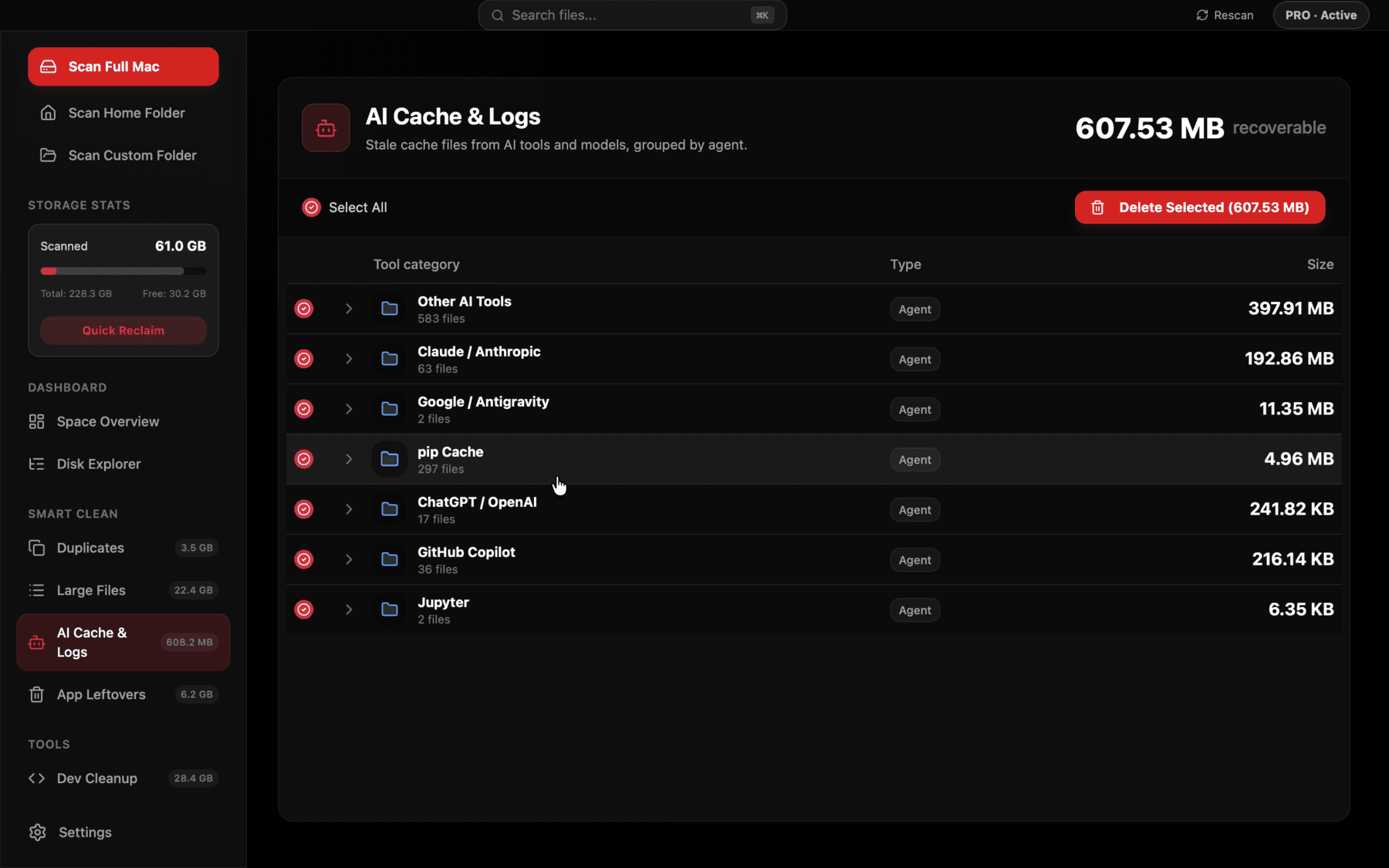
Reclaim's AI Cache & Logs view detects Cursor specifically — separate from plain VS Code — and breaks its storage down by workspace so you can see which old projects are still holding indexing data.
Safe cleanup steps
Cursor doesn't currently ship a built-in "clear cache" command in the way some other apps do, so cleanup here is mostly manual. The general order of what's safe to remove, from least to most aggressive:
- CachedData — safe to delete anytime; Cursor regenerates whatever it needs on next launch
- logs — safe to delete; these are just historical session logs with no effect on current behavior
- workspaceStorage entries for projects you've deleted or archived — safe to remove, but check the project name isn't still in active use since folder names are hashed and not obviously tied to a specific project without opening them
- Extension-related caches under CachedExtensions or similar — regenerate on next use of the affected extension
Extensions installed inside Cursor add their own weight too
Cursor supports the same extension ecosystem as VS Code, and any extension you've installed — whether it's an AI tool like a separate Copilot-style completion extension, a linter, or a theme — stores its own data under `~/Library/Application Support/Cursor/User/globalStorage`, exactly mirroring the structure VS Code itself uses. If you've moved from VS Code to Cursor and reinstalled a similar set of extensions, you now have two independent copies of each extension's cached state, one under each editor's Application Support folder, with nothing shared between them.
This is worth checking specifically if you installed heavier extensions early on while evaluating Cursor and later switched to Cursor's own built-in AI features instead — an old extension's cache can sit unused for a long time without anything prompting its removal.
Matching workspace folders back to real projects
Because workspaceStorage folders are named by hash rather than project name, figuring out which ones are safe to delete takes an extra step. Each workspace folder typically contains a `workspace.json` file with a `folder` field pointing at the original project path — reading that file (`cat "~/Library/Application Support/Cursor/User/workspaceStorage/<hash>/workspace.json"`) tells you which project it belongs to, and whether that path still exists on disk.
A short shell loop can do this check across every workspace folder at once rather than one at a time: iterating over each subdirectory under workspaceStorage, reading its workspace.json, and testing whether the referenced folder path still exists with a simple conditional gives you a list of orphaned entries in one pass, rather than opening dozens of JSON files by hand.
If the path no longer exists — the project was deleted, moved, or was a temporary clone — the workspace entry is safe to remove. This check-before-delete step is tedious across dozens of folders by hand, which is the main reason this kind of cleanup tends to get put off indefinitely rather than done.
Quitting Cursor before manual cleanup
As with any VS Code-based editor, fully quit Cursor before deleting anything under its Application Support directory — deleting active workspace state while the app is running can cause it to rewrite stale data back to disk on next save, undoing the cleanup. A full quit (Cmd+Q, not just closing the window) and confirming no Cursor process remains via Activity Monitor is worth the extra ten seconds.
How this compares to plain VS Code
If you use both Cursor and VS Code on the same machine — common for developers who keep VS Code around for a specific extension or client project — you're effectively running two parallel copies of this entire storage model, under `~/Library/Application Support/Cursor` and `~/Library/Application Support/Code` respectively, with no overlap between them. Extensions installed in both, workspace state for the same project opened in both editors, and each editor's own version cache all exist independently and don't share anything, even though the underlying codebase is largely the same.
This isn't a bug in either app; it's just what forking a codebase and giving it a new identity implies for anything stored per-application rather than per-project. If you've stopped using one of the two editors, its Application Support folder is one of the more overlooked candidates for a full cleanup, since none of that state does anything useful sitting idle.
A quick way to check which editor you've actually stopped using: compare the modification dates on each Application Support folder's logs subdirectory. A logs folder that hasn't been touched in months is a reasonably reliable sign the app itself hasn't been opened in that time, even if you're not sure offhand when you last launched it.
Frequently asked questions
Where does Cursor store its cache and workspace data on macOS?
Under ~/Library/Application Support/Cursor, with the largest contributors typically being User/workspaceStorage (per-project data and indexing) and CachedData (regenerable version-specific cache).
Is it safe to delete Cursor's CachedData folder?
Yes, CachedData is regenerated automatically on next launch and is safe to delete at any time while Cursor is closed.
Why does Cursor use more disk space than plain VS Code?
Cursor's codebase indexing feature builds and stores a local index of your project for its AI features, which adds storage per workspace on top of the standard VS Code workspace state it already inherits as a fork.
How do I know which Cursor workspace folder belongs to which project?
Each folder under workspaceStorage contains a workspace.json file with a folder field naming the original project path — check that file to confirm whether the project still exists before deleting.
Does Cursor have a built-in way to clear its cache?
Not currently a single dedicated command; cleanup of CachedData, logs, and stale workspaceStorage entries is done manually through Finder or Terminal, or with a tool that detects these locations automatically.
See exactly what’s using your disk space.