"Startup Disk Almost Full" on Mac — What It Means
The warning is blunt: "Your startup disk is almost full." macOS shows it as a system alert, sometimes mid-task, and it's genuinely disruptive — Spotlight indexing slows down, apps stutter on launch, and Time Machine backups start failing silently in the background. But the alert itself gives you almost nothing to work with beyond a button that opens Storage Management and a vague suggestion to "optimize storage."
This is one of the most common storage complaints on macOS, and it happens to careful, organized people just as often as it happens to digital hoarders. You can have an empty Desktop, a tidy Downloads folder, and still get this warning, because most of what fills a startup disk in 2026 isn't sitting in a folder you'd think to check. It's spread across caches, build artifacts, snapshots, and leftover application data that Finder doesn't surface by default.
This post walks through what "startup disk" actually refers to, why the warning triggers when it does, and the concrete steps — Terminal commands included — to find out what's really eating the space before you do anything drastic like reinstalling macOS or buying a bigger drive.
What "startup disk" actually means
On every Mac since the shift to APFS, your internal drive is really a single APFS container split into multiple volumes that share the same free space pool: a system volume (read-only, holds macOS itself), a Data volume (holds your files, apps, and most everything you interact with), and often a Preboot, Recovery, and VM (swap) volume. "Startup disk" in the warning refers to this whole container, not one file you can point at.
That's why the warning can feel sudden — it's not about one volume slowly filling, it's about the combined free space across the container dropping below a threshold. A large swap file created during a memory-heavy session, a burst of Xcode builds, or a batch of new Docker images can all tip it over in a single afternoon. The system volume itself is normally sealed and doesn't grow much between OS updates, so almost all of the growth you're chasing is happening on the Data volume or in purgeable space shared across the container.
It also explains why two Macs with the "same" amount of free space can behave differently near the threshold — one might have most of its remaining space as genuinely free blocks, while the other has a chunk of it tied up as purgeable snapshot data that macOS hasn't gotten around to reclaiming yet.
Check the real number first
Before digging into causes, confirm what you're working with. Open Terminal and run the following. Don't skip this step even if you're confident you already know the number from About This Mac — that number is frequently stale, cached from the last time macOS recalculated it in the background, and can lag behind what's true right now by a significant margin.
- df -h / — shows total, used, and available space on your Data volume in human-readable form.
- diskutil apfs list — shows the full APFS container, every volume in it, and how they share free space.
- diskutil info / — shows the specific volume's free space alongside its container's total capacity, useful for confirming exactly how much of the container is shared versus reserved.
The usual causes, in order of how often they're the culprit
In practice, four categories account for most "almost full" warnings on developer and power-user Macs, and they're worth checking roughly in this order since it maps to how often each one turns out to be the actual cause:
- Local Time Machine snapshots — APFS keeps hourly local snapshots even without an external backup drive attached, and they can quietly hold tens of gigabytes hostage as "purgeable" space that doesn't show up as a normal file.
- Developer caches — node_modules, Xcode DerivedData, Docker images, and Rust target/ folders across every project you've ever opened, many of them for work you finished and forgot about months ago.
- The System Data category — logs, caches, CoreSimulator devices, and Mail/Messages attachments, which grows continuously and isn't tied to any single app you'd think to uninstall.
- Downloads and installer leftovers — .dmg and .pkg files from app installs that never get deleted after the install finishes, sometimes sitting there for years.
Find out what's actually using the space
Terminal's du command is the fastest way to get real numbers without waiting for Finder to calculate folder sizes one at a time, which can take minutes on a large, deeply nested folder like ~/Library. Run this to see the top-level size of your home folder's biggest hidden directories:
- du -sh ~/Library/* 2>/dev/null | sort -rh | head -20 — ranks everything in your Library folder by size, largest first.
- du -sh ~/Library/Developer/Xcode/DerivedData — a common multi-gigabyte offender if you use Xcode; DerivedData rebuilds automatically on the next build, so clearing it costs you nothing but a slower next build.
- du -sh ~/Library/Containers/* 2>/dev/null | sort -rh | head -10 — sandboxed app data, often holds leftovers from apps you've since deleted, since macOS doesn't remove a sandboxed app's container automatically in every case.
- du -sh ~/Downloads — often overlooked, frequently holds forgotten installer images and large file downloads from months prior.
Check for local snapshots specifically
Because snapshots don't show up in du output the way regular files do, check for them separately. This is genuinely one of the highest-value checks on this whole list, since a Mac that's had a lot of file churn recently — a big project migration, a video edit, a batch of large installs — can accumulate a surprising amount of snapshot data in a short window:
- tmutil listlocalsnapshots / — lists every local snapshot currently held on your startup disk.
- tmutil thinlocalsnapshots / 10000000000 4 — asks macOS to reclaim up to roughly 10GB by thinning older snapshots; it may reclaim less if snapshots are still needed for recent backups.
Seeing it all in one place instead of running a dozen commands
The commands above work, but they're a scavenger hunt — you're running one, reading a number, running another, and never getting a full picture at once. Doing this properly means checking snapshots with tmutil, dev caches with du and find, Docker separately with docker system df, and cross-referencing all of it against df -h to make sure the numbers actually explain the gap. That's a reasonable amount of Terminal work for a one-off, but it gets old fast if this keeps happening.
This is the exact gap Reclaim was built for: a free treemap scan of your whole disk that shows every category — dev caches, AI model files, duplicates, app leftovers, local snapshots — sized and grouped in one view, so you can see what's actually large before deciding what to touch.
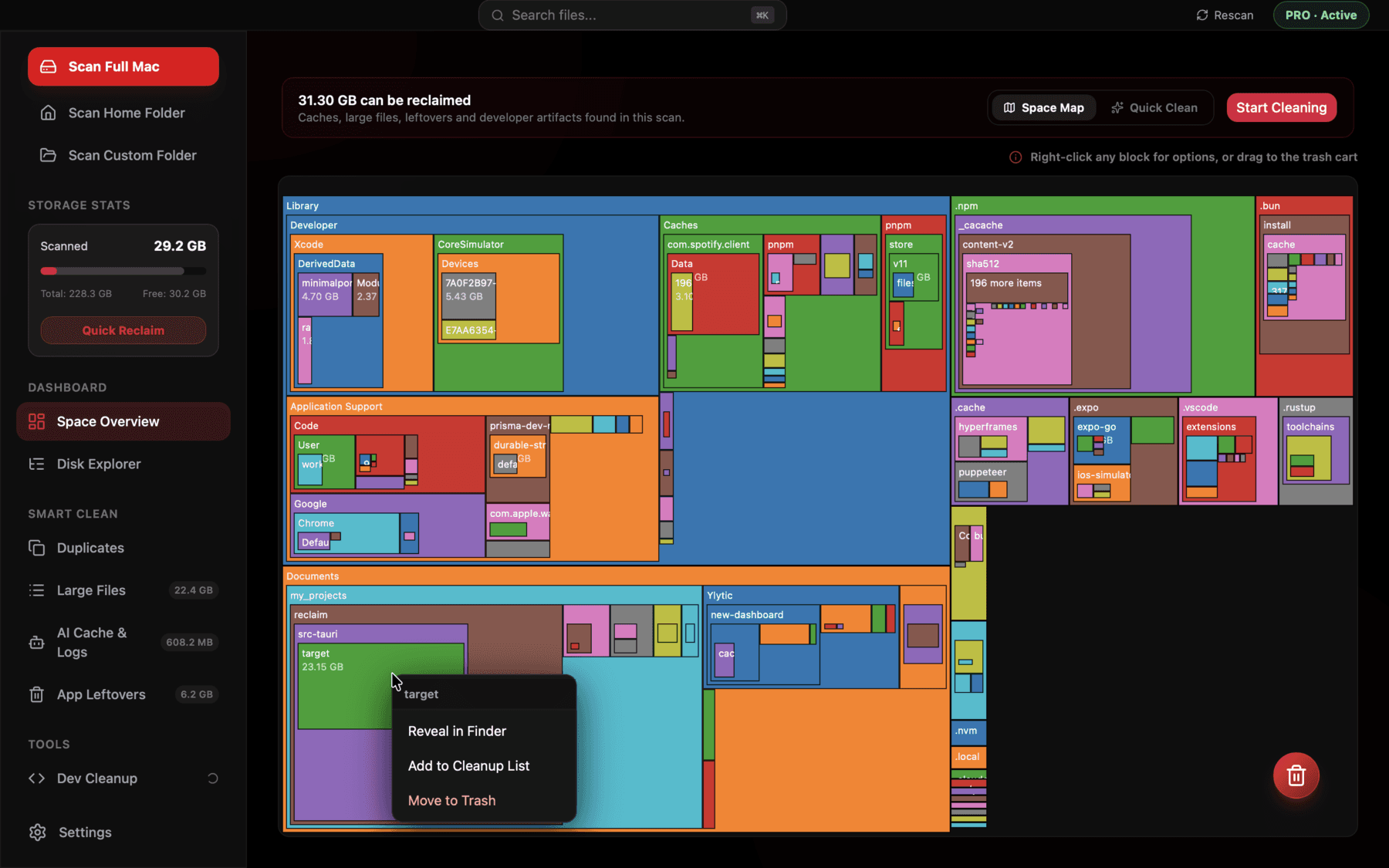
A full-disk treemap makes it obvious at a glance which folders are actually large, instead of guessing from Finder's flat folder view.
What to do once you've found the big items
Once you know what's large, act on the safest categories first. Emptying old installer .dmg files from Downloads and thinning local snapshots are essentially zero-risk. Developer caches like node_modules and DerivedData are regenerable — deleting them just means the next build or install takes longer, nothing is permanently lost. Be more careful with anything inside ~/Documents, ~/Desktop, or app-specific data folders you don't recognize; check what it is before removing it, since not everything under Application Support is disposable cache — some of it is your actual saved settings or data for that app.
If you'd rather not memorize Terminal flags every time this happens, Reclaim lets you bulk-select entire categories — all node_modules folders, all DerivedData, all local snapshots — and review the total size before anything moves to Trash, which is where every deletion goes rather than being permanently removed outright. That last part matters more than it sounds: it means a mistaken selection is recoverable exactly the way a Finder drag-to-Trash is, not a one-way command you have to be certain about in advance.
Stopping it from becoming a recurring problem
A single cleanup pass fixes the warning today, but if you do regular development work, dev caches and snapshot buildup will happen again — it's a natural side effect of how these tools operate, not a one-time mistake you made. Rather than waiting for the next warning, it's worth building a light habit around checking a couple of the biggest categories every month or two: run du -sh ~/Library/Developer/Xcode/DerivedData and tmutil listlocalsnapshots / as a quick health check, especially after a stretch of heavy project work or big installs.
It's also worth checking whether your workflow is generating more waste than it needs to. Some CI setups and editor configurations rebuild from scratch far more often than necessary, regenerating gigabytes of DerivedData or node_modules repeatedly when a cached build would do. That's a separate performance question from disk space, but the two are often connected — a Mac that rebuilds excessively also tends to accumulate excess cache faster than one that doesn't.
If you'd rather not run a monthly Terminal checklist by hand, a periodic scan with a tool that tracks these categories automatically catches the buildup before it reaches warning-threshold levels, rather than after.
Frequently asked questions
Why does macOS say my startup disk is almost full when Finder shows free space?
The warning is based on real-time usage across the whole APFS container, including purgeable space like local snapshots, which can shrink or grow between the moment Finder calculated free space and now.
Is it safe to delete local Time Machine snapshots?
Yes — they're a rolling local backup mechanism, not your only backup. Running tmutil thinlocalsnapshots removes older ones and macOS will recreate new ones as needed if Time Machine is enabled.
Will deleting node_modules or DerivedData break my projects?
No. Both are regenerated automatically — node_modules on the next npm install, DerivedData on the next Xcode build. You'll only lose a bit of rebuild time, not any source code.
How much free space does macOS actually need to run well?
Apple recommends keeping at least 10-15% of your drive free, and more if you use Xcode simulators, Docker, or edit large video files, since these tools create large temporary files during normal use.
Does restarting my Mac free up startup disk space?
Sometimes a small amount — it can clear temporary swap files and some caches — but it won't touch node_modules, DerivedData, model weights, or anything else that's an actual saved file on disk.
What's the fastest first thing to check when I get this warning?
Run tmutil listlocalsnapshots / first — local snapshots are the most common cause of a sudden warning after a burst of file activity, and they're invisible everywhere except this command.
See exactly what’s using your disk space.