LM Studio Storage Explained: Where Your Downloaded Models Actually Live
LM Studio's biggest strength is also what makes its storage footprint sneak up on you: the built-in model browser turns downloading a new GGUF model into a two-click action. There's no terminal command to remind you how much you just pulled down, no confirmation of total size before the download starts — just a progress bar, and then a new multi-gigabyte file sitting on your disk.
Do that a dozen times while comparing models — different sizes, different quantizations, models you downloaded to test a specific prompt and never opened again — and it's easy to accumulate well over 100GB without any single moment that felt like a big decision.
None of this is unique to LM Studio's design — it's a natural consequence of making local models this approachable. The tradeoff is that the same ease of downloading a model applies in reverse: nothing in the interface reminds you to remove one, so the only time most people notice is when macOS itself starts warning that storage is almost full.
Where LM Studio keeps model files
On macOS, LM Studio's default model storage location is `~/.cache/lm-studio/models`. Models are organized in subfolders by publisher and model name, mirroring the structure you see in the app's model browser — so a Mistral GGUF you downloaded from a particular HuggingFace repo shows up nested under a folder matching that repo name.
This location sits under the hidden `~/.cache` directory rather than the more commonly checked `~/Library` folders, which is part of why it's easy to overlook during a manual storage audit — most people scanning for large folders look through Application Support and Caches under ~/Library first, and `~/.cache` at the home directory root doesn't show up in Finder without enabling hidden files (Cmd+Shift+. in a Finder window).
LM Studio also lets you point it at a custom models directory instead of the default cache location — useful if you want models on an external drive or a separate volume with more free space. You can check and change this under the app's settings, in the section that manages model storage paths. If you've done this, your models won't be under `~/.cache/lm-studio` at all, so it's worth confirming the configured path first before assuming the default location.
Changing this setting after you've already downloaded a meaningful number of models doesn't automatically move existing files to the new location — it only applies going forward, so anything downloaded before the change stays in the old directory until moved manually. It's worth deciding on a storage location early, before accumulating a large model collection, to avoid ending up with models split across two directories that both need checking during any future cleanup.
Checking total size from Terminal
Whether or not you've changed the location, the same basic approach works to size things up:
- du -sh ~/.cache/lm-studio/models — total size if you're using the default location
- du -sh ~/.cache/lm-studio/models/*/* | sort -rh | head -20 — largest individual model folders, broken out by publisher/model
- find ~/.cache/lm-studio/models -name "*.gguf" -exec du -h {} \; | sort -rh | head -20 — largest individual GGUF files specifically
How big these files actually are
GGUF is a quantized format, and the file size scales with both parameter count and quantization level. A 7B parameter model at Q4_K_M — a common default balance of quality and size — typically lands around 4-5GB. A 13B model at the same quantization runs roughly 7-8GB. Larger models scale up from there; a 70B model, even heavily quantized, is commonly 35-40GB.
It's common in LM Studio specifically to end up with multiple quantizations of the same model side by side — a Q4 version for everyday use and a Q8 or F16 version you downloaded to compare output quality. Each one is a separate multi-gigabyte file; keeping more than one around long-term is rarely necessary once you've picked a favorite.
The model browser's search and filter interface also makes it easy to download variants from different publishers that are functionally the same underlying model — a base model released by one organization and a community-repackaged GGUF conversion of the same weights from another. Visually these look like entirely separate entries in the browser, but on disk they can be near-identical in content and size, just stored under different publisher folder names.
Removing models
The safest way to remove a model is through LM Studio's own model browser or the My Models tab in the app, which shows every downloaded model with its size and a delete option — this keeps the app's internal model index in sync with what's actually on disk. Deleting the underlying GGUF file directly from Finder or Terminal works too, but LM Studio may still list the model as installed until you restart the app or refresh the model list, which can be confusing later.
If you do go the manual route, deleting a model folder under `~/.cache/lm-studio/models/<publisher>/<model>` removes it the same way; just make sure LM Studio isn't actively running that model at the time.
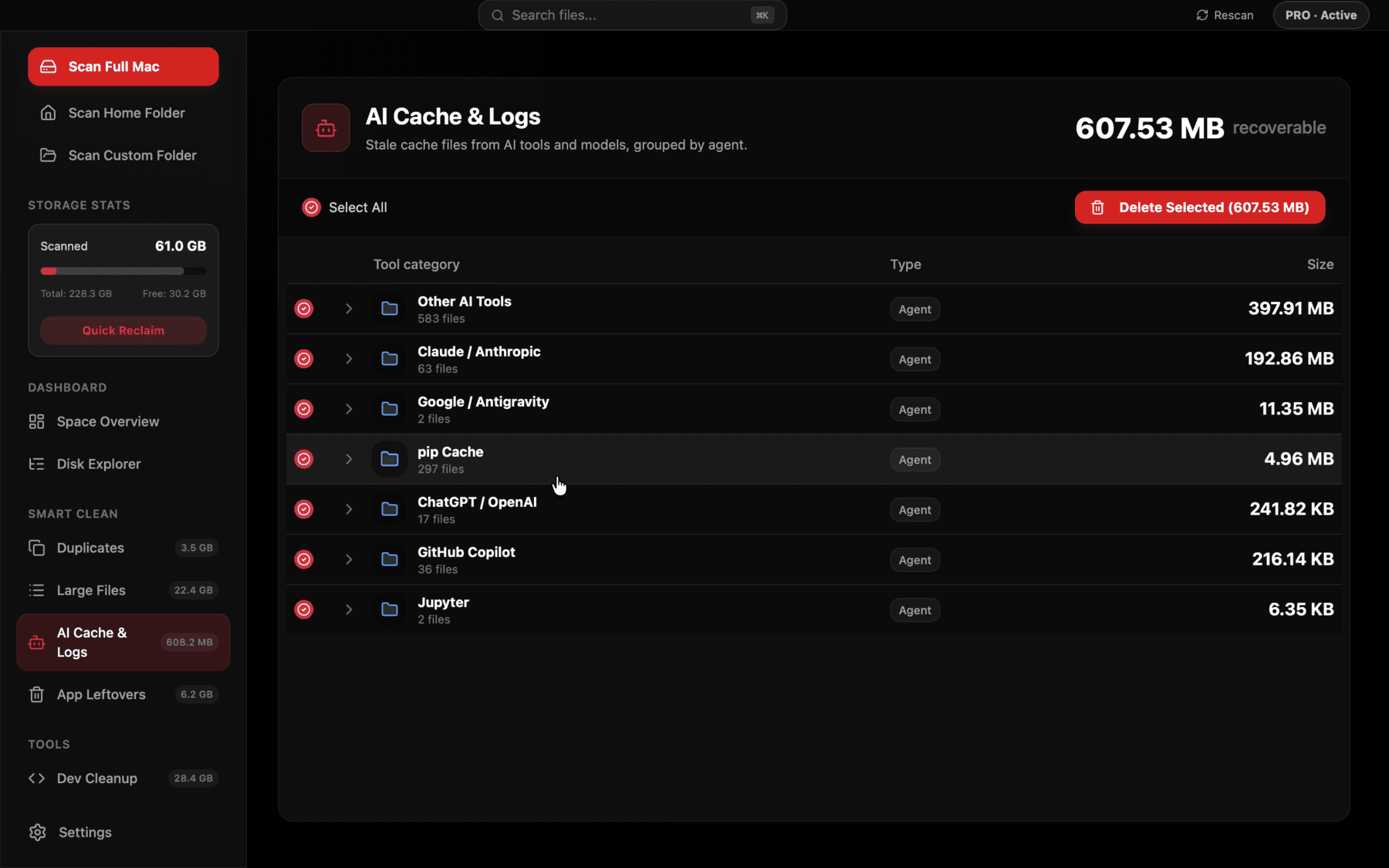
Reclaim's AI Cache & Logs view picks up LM Studio's model cache alongside Ollama, HuggingFace, and other AI tools, so you can compare all of them in one list instead of checking each app separately.
What the model browser doesn't tell you upfront
LM Studio's model browser shows a file size next to each downloadable variant before you commit to the download, which is genuinely helpful — but it's easy to skim past when you're moving quickly through a list of quantization options for the same model. A model card listing five quantizations from Q2 up to F16 is really listing five separate downloads ranging anywhere from a couple of gigabytes to well over ten, for what functionally amounts to the same model at different fidelity levels.
It's worth treating that list the way you'd treat a set of video export presets — pick the one you actually need for your use case (Q4_K_M is a reasonable default for most local chat and coding use), download it, and resist downloading the rest just because they're one click away in the same interface.
Runtime memory versus stored model size
It's worth separating two different numbers that are easy to conflate: the size of the GGUF file on disk, and the RAM LM Studio needs to actually load and run that model. A 7B model at Q4 might be a 4-5GB file but need something closer to 6-8GB of RAM once loaded with context space accounted for, since the loaded representation and the KV cache for an active conversation both sit in memory alongside the raw weights. This doesn't change anything about disk usage, but it explains why a model that looks reasonably sized in the My Models tab can still make your Mac feel sluggish while it's actively loaded — that's a memory pressure issue, not a storage one, and clearing disk space won't fix it.
The HuggingFace cache overlap
If you've also used HuggingFace's own tooling — the `transformers` or `diffusers` Python libraries, or `huggingface-cli` directly — you likely have a second, separate cache at `~/.cache/huggingface`, distinct from LM Studio's model storage even though both might contain the exact same model weights downloaded independently. LM Studio does not read from or share storage with the HuggingFace cache by default; each download through LM Studio's browser is its own copy.
This means it's genuinely possible to have the same Mistral 7B model stored twice on disk — once under `~/.cache/lm-studio/models` from LM Studio's browser, and again under `~/.cache/huggingface/hub` from a Python script that pulled it independently. Checking both locations when auditing space is worth doing if you use both tools.
Anyone doing a mix of quick chat sessions through LM Studio and scripted evaluation through a Python notebook is a prime candidate for this duplication, since both workflows tend to reach for the same well-known models and neither tool checks whether the other has already downloaded the exact same weights.
A simple habit that prevents this from growing unchecked
Before downloading a new model in LM Studio just to try it, it's worth checking the My Models tab for what's already installed — there's a decent chance you already have something in a similar size class. And after any comparison session where you pulled several quantizations, deleting all but the one you settled on takes under a minute and avoids the slow accumulation that's hard to notice happening in real time.
It's also worth periodically checking whether a model you downloaded for a specific project is still relevant to anything you're actively working on. Unlike a dependency cache tied to a project folder, LM Studio's models are entirely decoupled from any project — there's nothing that ties a downloaded GGUF file back to the task it was downloaded for, which makes it easy for a model to outlive the reason you got it in the first place by many months.
Frequently asked questions
Where does LM Studio store downloaded models on Mac?
By default under ~/.cache/lm-studio/models, organized in folders by publisher and model name, unless you've configured a custom models directory in the app's settings.
How do I delete a model in LM Studio?
Use the My Models tab inside LM Studio, which lists every downloaded model with a delete option and keeps the app's internal index in sync with disk.
Can LM Studio store models on an external drive?
Yes, LM Studio lets you set a custom models directory in its settings, which can point to any mounted volume including an external SSD.
Are LM Studio and HuggingFace cache the same thing?
No. LM Studio's model browser downloads into its own directory (~/.cache/lm-studio/models by default), separate from the HuggingFace cache (~/.cache/huggingface) used by Python tooling like transformers or huggingface-cli, even if both hold the same model.
How large are typical GGUF model files?
A 7B model at Q4 quantization is roughly 4-5GB, a 13B model roughly 7-8GB, and a 70B model roughly 35-40GB, with higher-precision quantizations like Q8 or F16 running larger still.
Why do I have multiple copies of the same model?
This usually happens from downloading different quantizations of the same model to compare quality, or from using both LM Studio and a separate HuggingFace-based tool that each maintain their own model storage.
See exactly what’s using your disk space.