Why Most Mac Cleaner Apps Are a Privacy Risk (And How to Check Before You Install One)
Any app that promises to "clean up your Mac" is, by definition, asking for one of the broadest permissions macOS can grant: Full Disk Access. That's the same level of access that lets it read your Documents, your Photos library, your Mail data, and your browser profiles. That's not automatically a red flag — legitimate cleanup tools need it to do their job — but it's exactly why a little due diligence before installing one is worth five minutes of your time.
This isn't a takedown of any specific app. It's the checklist worth running against any cleaner you're considering, including this site's own, and it's the same due diligence worth applying to any app that asks for this level of access — a backup tool, a file sync client, a search indexer.
Why Full Disk Access matters here specifically
macOS gates access to ~/Documents, ~/Desktop, ~/Downloads, and most of ~/Library behind a Privacy & Security permission called Full Disk Access, found in System Settings > Privacy & Security > Full Disk Access. A cleaner app needs this to see inside your Library folder, where almost all cache and app-leftover bloat actually lives — without it, the app is mostly blind to the folders it exists to clean.
The question isn't whether an app asks for this permission. Almost all legitimate ones do, and a guided first-run prompt explaining why is a good sign, not a bad one. The question is what it does once it has that access.
It's also worth knowing that granting Full Disk Access is an explicit, deliberate action on your part — macOS requires you to open System Settings yourself, find the app in the list, and toggle it on. There's no way for an app to silently grant itself this permission in the background, which means the moment of risk is really the moment you flip that switch, not some invisible thing happening after installation.
The checklist: run this before you install anything
None of these checks require special tools or technical background beyond what's already on your Mac:
- Check System Settings > Privacy & Security after granting access. Confirm the permission matches what the app actually needs (Full Disk Access for a cleaner makes sense; Camera or Contacts access for the same app does not, and is worth asking why).
- Look for notarization. Any app downloaded outside the Mac App Store should be notarized by Apple — Gatekeeper will tell you on first launch if it isn't. An unsigned app isn't automatically malicious, but it does mean Apple hasn't scanned it, so the developer's reputation and transparency matter more.
- Check whether deletion goes to Trash or bypasses it. This is checkable behavior, not a claim you have to take on faith: delete something small through the app, then immediately open Finder's Trash. If it's not there, the app deleted it unrecoverably.
- Watch for a network monitor prompt. Tools like Little Snitch or the free, open-source Lulu will prompt you the first time any app tries to make an outbound connection. Run a scan with one of these installed and watch what tries to phone home — a local disk-scanning tool has no inherent reason to send data anywhere.
- Check if it's open source or has a public changelog. You don't have to read the code yourself, but a project that's auditable by anyone, or that publishes what changed in each release, is voluntarily accepting a level of scrutiny that a closed, unchanging binary isn't.
- Look at the pricing model relative to usage. A cleanup tool you'll open a few times a year fits a one-time purchase better than a monthly subscription — that mismatch is sometimes a sign the business model depends on you forgetting to cancel, not on the tool's ongoing value.
What telemetry actually looks like, and how to catch it
"Sends your data to a server" is a serious claim, and it's not one to make about a specific competitor without direct evidence — most cleaner apps don't publish exactly what they transmit, and assuming the worst without proof isn't fair either. What is fair, and checkable by anyone, is looking for the behavior yourself.
A network monitor like Little Snitch shows every outbound connection attempt by app, by domain, in real time. If you run a scan with your cleaner of choice and see it reaching out to analytics domains, or worse, uploading anything resembling a file listing, that's observable fact you found yourself — not a rumor repeated from another blog post. If it makes zero unexpected connections during a local scan, that's also worth knowing, and it's the same test either way.
Reasonable telemetry — an anonymous crash report, or a check for available updates — is different from a scan uploading your file paths or names. The distinction that matters is whether what's sent could identify what's actually on your disk. A connection to a crash-reporting domain right after a bug is unlikely to be sinister; a connection that fires every time you run a full disk scan is worth investigating further before you keep using the app.
Open source versus closed source, honestly
Open-source tools have a real, concrete advantage here: anyone can read exactly what the code does, and a community of contributors and security researchers has often already looked. That's a genuine trust signal, not a marketing claim. It doesn't automatically mean an open-source tool is better built or more reliable — plenty of excellent, trustworthy software is closed source, reviewed internally rather than publicly, and closed source doesn't imply anything is being hidden.
What it does mean is that if a project's source is public, checking a specific claim — does it really only ever move files to Trash, does it really make no network calls during a scan — doesn't require trusting the developer's word for it. That's a strictly higher bar to clear than a closed binary can offer, even a well-intentioned one, simply because it's independently verifiable rather than asserted.
Where Reclaim lands against this same checklist
Since this is the natural place to hold our own tool to the same checklist: Reclaim is signed with an Apple Developer ID certificate and notarized by Apple, so it passes the Gatekeeper check on first launch rather than asking you to right-click around it. It does need Full Disk Access to see inside ~/Library, and asks for it directly with an explanation on first run rather than burying the request.
On the other side of the checklist: every deletion — one file or a bulk selection — moves items to macOS Trash, the same as a Finder drag, never a direct unrecoverable delete, and core system paths are hardcoded as protected in the Rust engine itself, not just hidden in the interface. Scanning is entirely free with no account required, and the paid tier is a one-time lifetime unlock for deletion, not a subscription. We've written more on the specific engineering reasoning behind the Trash-only approach if you want the deeper version of that piece of the checklist.
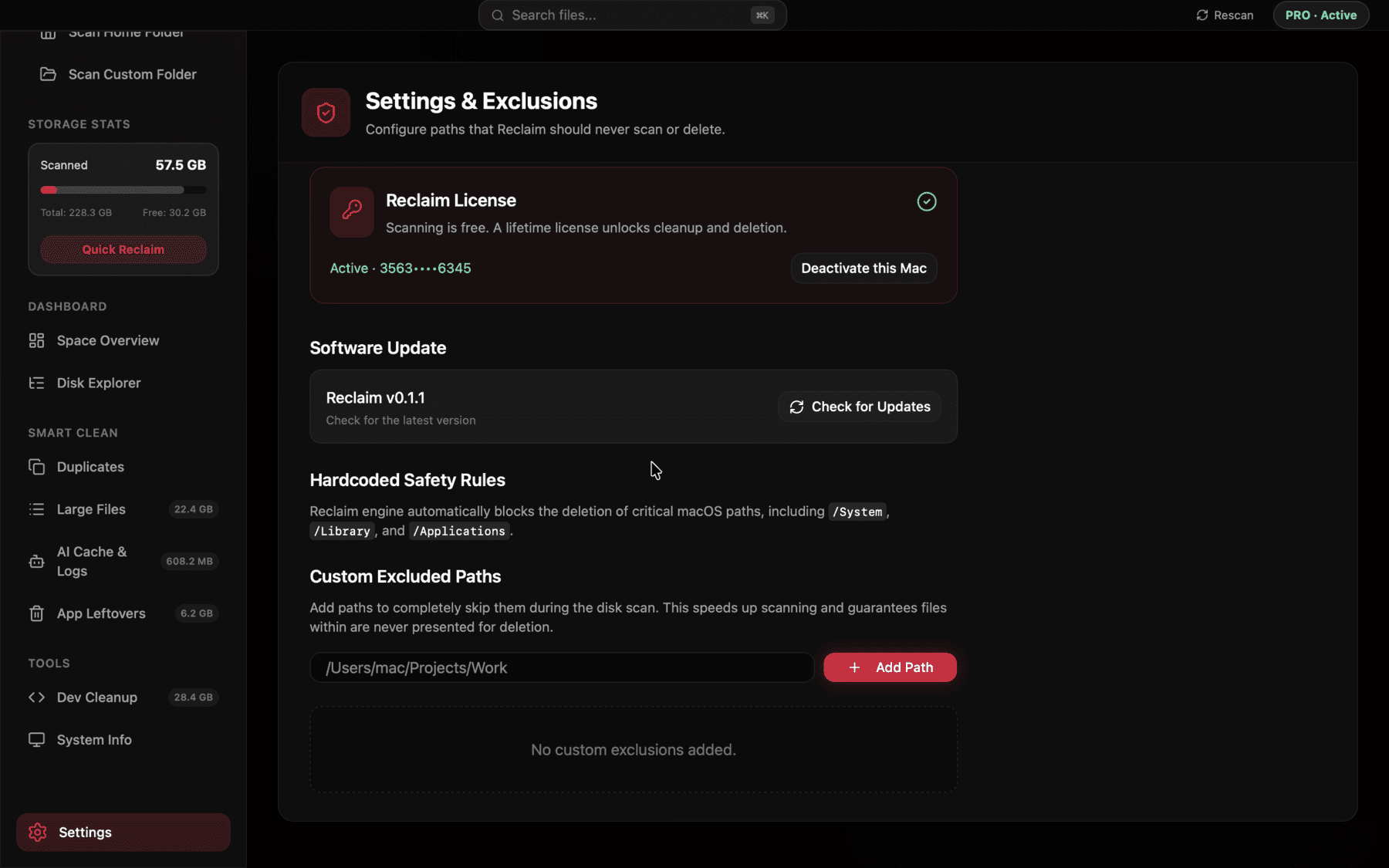
Full Disk Access is requested explicitly with a first-run explanation, not silently assumed.
Subscriptions and the incentive problem
There's a structural reason to be a little more skeptical of a subscription-funded cleaner than a one-time-purchase one: a subscription's revenue depends on you continuing to pay every month regardless of whether you open the app that month, which is a different incentive than a one-time purchase, where the developer is paid once and the relationship is over. That doesn't make every subscription cleaner predatory — plenty offer real ongoing value, like continuous background monitoring or frequent database updates for new AI tools and caches — but it's a reasonable factor to weigh against your own actual usage pattern, not just the marketing page's list of features.
A simple gut check: if you'd use the tool once every few months for an occasional deep clean, a one-time purchase fits that pattern better than a monthly charge that keeps running whether you open the app or not.
A healthy default: verify, then trust
None of this means you should distrust every cleanup app by default, including free and open-source ones. It means the burden of proof is on the app to make its behavior checkable, and the burden on you is just five minutes: look at the permission it actually requests, watch what it does over the network during a scan, and confirm where deleted files actually go before you run a bulk delete for the first time.
That habit generalizes well beyond cleaner apps, too — it's the same basic diligence worth applying to any tool that asks for broad filesystem or network access on a computer you rely on daily.
Frequently asked questions
Do Mac cleaner apps need Full Disk Access?
Yes, legitimately — most of the cache and leftover-file bloat they're built to find lives inside ~/Library, which macOS hides behind the Full Disk Access permission. The concern isn't the request itself, it's what the app does after you grant it.
How can I tell if an app is sending my data somewhere?
Install a network monitor like Little Snitch or the free, open-source Lulu, then run a scan and watch for outbound connection prompts. A purely local disk tool should make few or no unexpected network calls during a scan.
Is it safe to delete files with a third-party cleaner?
It's safer when the app deletes via macOS Trash rather than an unrecoverable delete. You can verify this yourself: delete something small through the app and check Finder's Trash immediately afterward.
What does notarization actually mean?
Notarization means Apple has scanned the app for known malware signatures before allowing it to run without a Gatekeeper warning. It's not a guarantee of quality or trustworthiness, but its absence means that extra check hasn't happened.
Are subscription-based cleaner apps a red flag?
Not inherently, but it's worth checking whether the subscription price matches how often you'll realistically use the tool — an app you'll open a handful of times a year is a natural fit for a one-time purchase instead.
See exactly what’s using your disk space.